In one line: A NAS (network-attached storage) is a small always-on server that provides shared storage and applications to every device on your network. Unlike a USB drive it serves multiple users at once, runs continuously, and uses several disks to survive a drive failure — but redundancy is not a backup, and confusing the two is the most expensive mistake beginners make.
A NAS sits on your network the way a printer does: always there, addressable by any device, not tied to one computer. What you actually get for that is three things — a single place your files live, a machine that keeps serving them when a disk dies, and a small application platform that can replace several subscriptions.
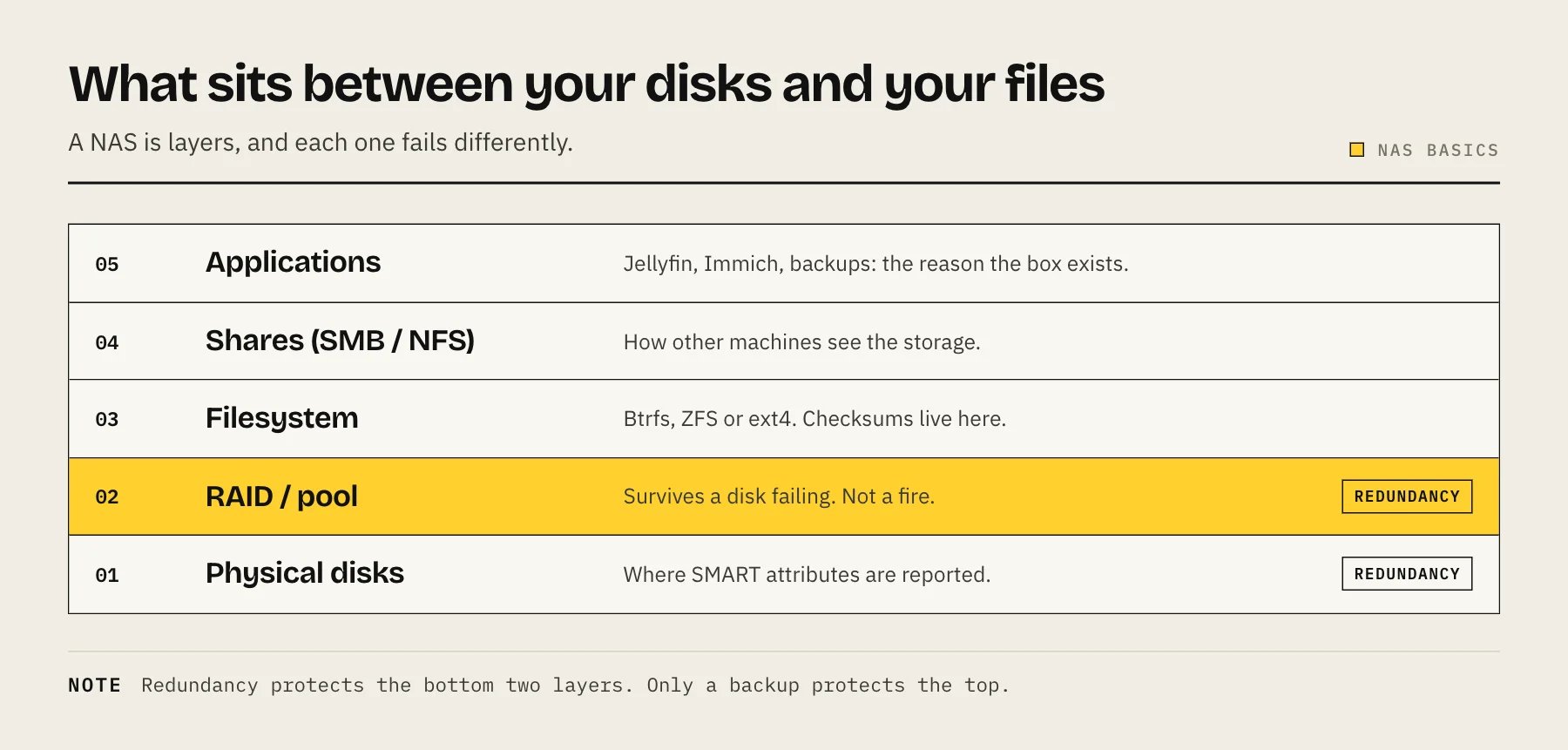
What is inside a NAS
- Drive bays hold HDDs or SSDs. More bays mean more capacity and more redundancy options — a two-bay unit can only mirror, while four bays open up parity layouts.
- CPU and RAM handle file services, encryption, containers and media processing. An Intel chip with Quick Sync matters enormously if you plan to stream video; it is irrelevant if you only store files.
- Network ports at 1, 2.5 or 10 GbE set a ceiling on transfer speed — though for spinning disks the drives usually hit their limit first.
- The operating system — Synology DSM, QNAP QTS, TrueNAS, Unraid — manages users, shares, snapshots, apps and updates. This is what you actually live with day to day, and it varies far more between vendors than the hardware does.
What people actually use one for
| Use | What matters most |
|---|---|
| Computer backups | Capacity, snapshots, tested restores |
| Family photos | Mobile apps, indexing, offsite backup |
| Media streaming | Direct-play support; an iGPU if transcoding |
| Shared project files | Network speed, permissions, SSD latency |
| Containers and VMs | x86 CPU, RAM, SSD for application data |
| Surveillance recording | Sustained write endurance, camera licences |
Most people arrive with one of these and discover the others later. That is worth knowing when you buy: the box that only just covers today's use will feel small within a year.
The single most important thing to understand: RAID is not a backup
This deserves its own section because it is where people lose data.
RAID (or SHR, or a ZFS pool) spreads data across several disks so the array keeps working when one fails. That protects availability — the NAS stays up, you keep working, you replace the disk.
It does nothing about:
- Deleting a file by accident. The deletion is faithfully written to every disk.
- Ransomware. Encrypted files are encrypted on every disk.
- A failed controller, a power surge, a fire, a flood, a theft. The whole box goes.
- A second drive failing during the rebuild — a real risk on single-parity arrays with large drives.
A NAS with four disks in RAID 5 and no backup is one copy of your data, not four. Plan for the 3-2-1 backup rule from the start rather than after the first scare.
NAS, external drive, or cloud?
An external drive is cheapest for one computer, but it has no shared access, no redundancy, and it only protects you when you remember to plug it in.
Cloud storage is effortless offsite protection with no hardware to maintain — but it is an indefinite subscription, restores are limited by your download speed, and large libraries get expensive.
A NAS gives you fast local access, control over your own data, and a platform for apps. The cost is that you are now the administrator: patching, monitoring and backups are your job.
For most households the honest answer is not either/or. A NAS as the working copy plus cloud object storage as the offsite copy is cheaper and more robust than either alone — see NAS vs cloud storage for the cost framework and cloud backup options for the providers.
How many bays do you need?
Two bays suit a straightforward backup-and-documents role. Four is the sweet spot for most households: it allows double-parity layouts, leaves room to grow, and does not cost dramatically more than two. Six or more makes sense for large media libraries or many concurrent services.
Buy for the storage you expect in three years, not the storage you have today — see how many drive bays you need and model the numbers with the RAID capacity calculator.
Prebuilt or build your own?
Prebuilt (Synology, QNAP, UGreen, Asustor) gives you a polished OS, mobile apps, an app store and vendor support. You accept their hardware choices and their pace of updates.
DIY with TrueNAS or Unraid gives you far more hardware for the money and complete control. You accept that you are the support department. Our prebuilt vs DIY comparison covers the trade in detail.
Neither is wrong. The question is whether you want a storage appliance or a project.
What a first week looks like
- Install the drives and create the storage pool. Choose the redundancy level deliberately — changing it later means moving all the data.
- Update the OS immediately, before anything else touches the network.
- Create a named admin account and disable the default one. Do daily work as a non-admin user.
- Set up the shares you need, with the minimum permissions each user requires.
- Point one computer's backup at it and confirm you can restore a file.
- Configure the offsite copy. This is the step people postpone indefinitely.
- Turn off any remote access you are not using, and never forward the admin panel to the internet — see protecting a NAS from ransomware.
What it costs to run
A modern four-bay NAS with spinning disks typically draws 25–60 W depending on activity. At $0.20/kWh that is roughly $45–105 a year, plus the drives themselves. Our power cost calculator turns that into a figure for your electricity rate.
FAQ
Is a NAS hard to set up? A prebuilt one is roughly as hard as setting up a router. The hard part is not installation — it is the ongoing discipline of updates, monitoring and backups.
Can I access it from outside the house? Yes, and you should do it with a private mesh VPN rather than by opening ports. See accessing your NAS remotely.
Do I need special drives? Use NAS-rated CMR drives. Desktop drives work but are less suited to constant vibration and 24/7 duty, and drive-managed SMR drives cause serious problems during rebuilds — see CMR vs SMR.
Can it replace my cloud storage entirely? For working files, comfortably. For your only copy of irreplaceable data, no — you still need something offsite.
How long do NAS drives last? Large-fleet data suggests most drives run several years without trouble, but individual failure is unpredictable. Plan for it rather than trying to forecast it — see SMART attributes that predict failure.
Sources
- Choose a RAID Type (DSM 7) — Synology Knowledge Center
- How can I back up my Synology NAS? (3-2-1 strategy) — Synology Knowledge Center
- DiskStation DS925+ specifications (power consumption) — Synology
- Hard Drive Reliability & Test Data (Drive Stats) — Backblaze