Run Paperless-ngx as a Docker Compose stack on your NAS with three services — the app, PostgreSQL and Redis — plus four bind-mounted folders:
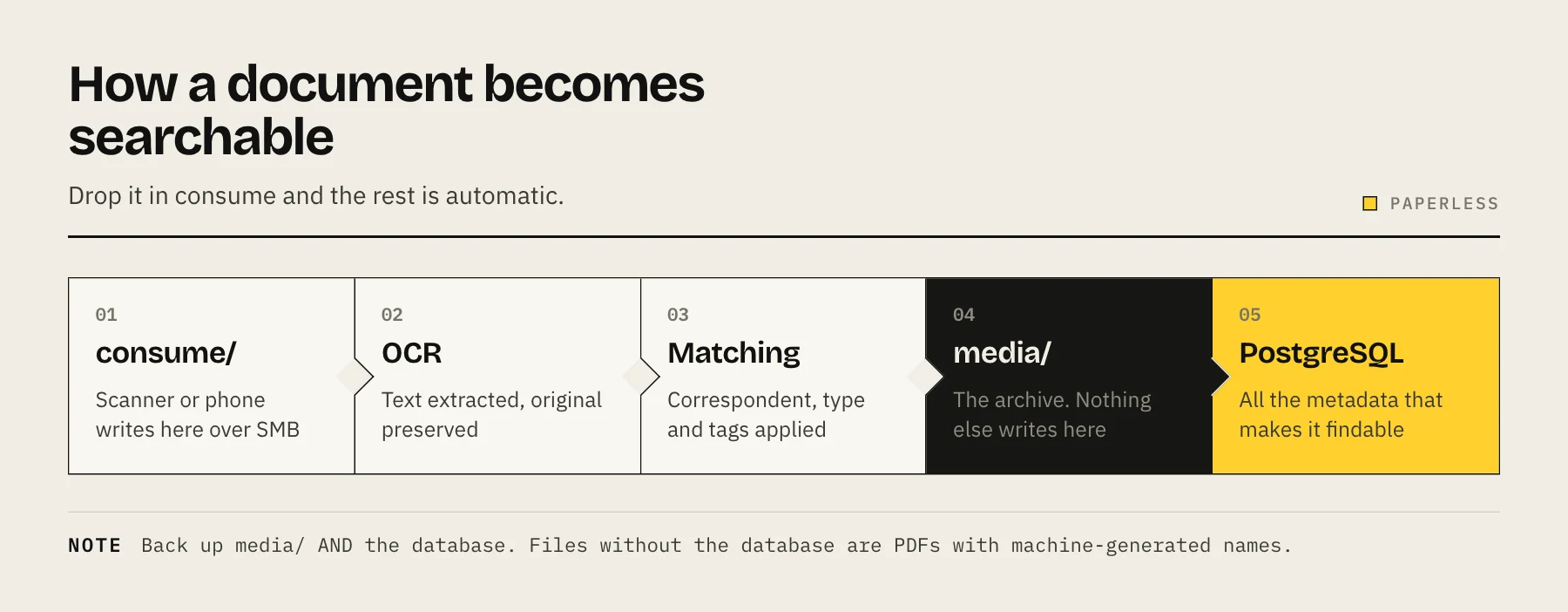
consume,media,dataandexport. Drop a PDF or a scan intoconsumeand it is OCR'd, tagged and searchable within a minute. Back upmediaand the database together, because either one alone is useless.
Paperless-ngx turns a folder of scanned documents into a searchable archive. The value is not storage — it is that "the boiler warranty from 2023" becomes a search away instead of a drawer away.
What you need first
- A NAS or server running Docker with Compose. Our Docker on NAS guide covers the basics if this is new.
- 2 GB of free RAM as a working minimum; OCR is the heavy part.
- A scanner, or a phone scanning app that can write to a network folder.
- The PUID and PGID of the user that should own the files. Get this wrong and the container cannot write to your shares — see Docker PUID and PGID explained.
Step 1 — Create the folder structure
On a shared folder, create:
paperless/
├── consume/    # drop documents here — they get ingested and removed
├── media/      # the archive: original + OCR'd PDFs. This is your data.
├── data/       # search index and app state
└── export/     # document exports and backup dumps
Share consume over SMB so the scanner and your laptop can write to it. Do not share media as writable — nothing outside Paperless should touch it.
Step 2 — Write the Compose file
services:
  broker:
    image: redis:7
    container_name: paperless-redis
    restart: unless-stopped
    volumes:
      - ./redis:/data

  db:
    image: postgres:16
    container_name: paperless-db
    restart: unless-stopped
    volumes:
      - ./pgdata:/var/lib/postgresql/data
    environment:
      POSTGRES_DB: paperless
      POSTGRES_USER: paperless
      POSTGRES_PASSWORD: change-this-password

  webserver:
    image: ghcr.io/paperless-ngx/paperless-ngx:latest
    container_name: paperless
    restart: unless-stopped
    depends_on:
      - db
      - broker
    ports:
      - "8000:8000"
    volumes:
      - ./data:/usr/src/paperless/data
      - ./media:/usr/src/paperless/media
      - ./export:/usr/src/paperless/export
      - ./consume:/usr/src/paperless/consume
    environment:
      PAPERLESS_REDIS: redis://broker:6379
      PAPERLESS_DBENGINE: postgresql
      PAPERLESS_DBHOST: db
      PAPERLESS_DBUSER: paperless
      PAPERLESS_DBPASS: change-this-password
      PAPERLESS_SECRET_KEY: generate-a-long-random-string
      PAPERLESS_TIME_ZONE: Europe/London
      PAPERLESS_OCR_LANGUAGE: eng
      PAPERLESS_URL: http://your-nas-ip:8000
      USERMAP_UID: 1000
      USERMAP_GID: 1000
Change every placeholder. PAPERLESS_SECRET_KEY should be a long random string — treat it like a password. Set USERMAP_UID/USERMAP_GID to your actual PUID/PGID.
For multiple OCR languages, use PAPERLESS_OCR_LANGUAGE: eng+deu. English, German, Italian, Spanish and French are installed by default; for any other language, also list it in PAPERLESS_OCR_LANGUAGES (space-separated, e.g. tur ces) so the language pack is installed.
Pin the image tag rather than using latest once you are in production. It makes upgrades a decision rather than a surprise.
Step 3 — Start it and create the admin user
docker compose up -d
docker compose logs -f webserver
Wait for the migrations to finish on first run — this takes a minute or two. Then create the superuser:
docker compose exec webserver python3 manage.py createsuperuser
Open http://your-nas-ip:8000 and log in.
Step 4 — Set up tags, correspondents and document types
Paperless organises documents three ways, and a little structure up front saves a lot of retrofitting:
- Correspondent — who sent it. Your bank, the council, an insurer.
- Document type — what it is. Invoice, contract, statement, warranty.
- Tags — everything else.
tax-2026,car,house,to-file.
Create a handful of each before importing in bulk. Paperless will suggest matches on new documents once it has examples to learn from.
Step 5 — Turn on automatic matching
Under each tag or correspondent, set a matching algorithm:
- Any/All word — simple keyword matching. Good for a correspondent whose name appears on every document.
- Regular expression — precise, for things like account numbers.
- Auto — Paperless trains a classifier from documents you have already tagged. This is the one that makes the system feel intelligent, and it needs a few dozen examples before it is useful.
Start with explicit matching, let the archive grow, then switch high-volume tags to Auto.
Step 6 — Feed it
From a scanner: set the scan destination to the consume share, output as PDF, 300 DPI. Colour is worth it for anything with a stamp or signature; greyscale is fine for plain text and produces smaller files.
From a phone: any scanning app that can save to a network share or a synced folder works.
Bulk import of existing PDFs: copy them into consume in batches of a few hundred rather than all at once. OCR is CPU-bound and a NAS that is also serving media will feel it.
Step 7 — Back it up properly
This is the step that gets skipped, and it is the one that matters.
The media folder alone is not enough. It holds your documents, but all the tags, correspondents, types and search metadata live in PostgreSQL. Restore media without the database and you have a pile of PDFs with machine-generated filenames — exactly the situation Paperless was meant to solve.
Two workable approaches:
Use the built-in exporter — it writes documents plus a manifest of all metadata into export/, in a form that can be re-imported into a fresh instance running the same Paperless-ngx version:
docker compose exec webserver document_exporter ../export
Schedule this weekly, then include export/ in your NAS backup.
Or back up media and a pg_dump of the database together, as a matched pair from the same point in time.
Either way the result must leave the building. A document archive that only exists on the NAS fails the same fire-and-theft test as everything else — see the 3-2-1 backup rule and cloud backup options.
Should you keep the paper?
For most household documents, no — a searchable archive with an offsite backup is more durable than a filing cabinet. But some documents have legal weight only in original form: property deeds, some wills, certain certificates and notarised papers. Keep those physically, and scan them as well.
Access it safely
Paperless holds bank statements, contracts and identity documents. It is exactly the kind of service that should never be port-forwarded. Reach it over Tailscale when you are away, and if you genuinely need browser access from an unmanaged device, put it behind a reverse proxy with an authentication layer — see Cloudflare Tunnel vs Tailscale vs reverse proxy.
FAQ
How much CPU does OCR need? A modern low-power NAS CPU handles a few documents per minute. Bulk-importing thousands takes hours to days — start it overnight.
Can it read handwriting? No. OCR handles printed text. Handwritten notes are stored and searchable by the tags and title you give them.
What happens to files in consume? They are ingested and removed by default. The original is preserved inside media. Test this with a throwaway document before pointing your scanner at it.
Does it work with SMB shares as volumes? Bind-mount local paths on the NAS. Mounting a remote SMB share into the container is a common source of permission and locking problems.
Sources
- Paperless-ngx docs: Administration (backups, document exporter, createsuperuser) — Paperless-ngx project (GitHub)
- Paperless-ngx docs: Configuration (DBENGINE, OCR languages, USERMAP_UID) — Paperless-ngx project (GitHub)
- Official Docker Compose file for Paperless-ngx with PostgreSQL — Paperless-ngx project (GitHub)
- Paperless-ngx docs: Usage (consumption directory, matching) — Paperless-ngx project (GitHub)