Vaultwarden is a lightweight Bitwarden-compatible server that runs in one small container and works with the official Bitwarden apps. It needs HTTPS — the browser extensions and mobile apps will not connect over plain HTTP — and it needs a backup you have actually restored, because this is the one service where losing the data means losing everything else too.
Vaultwarden is a rewrite of the Bitwarden server in Rust. It implements the same API, so every official Bitwarden client works against it, and it runs comfortably on hardware that the official self-hosted stack would not tolerate.
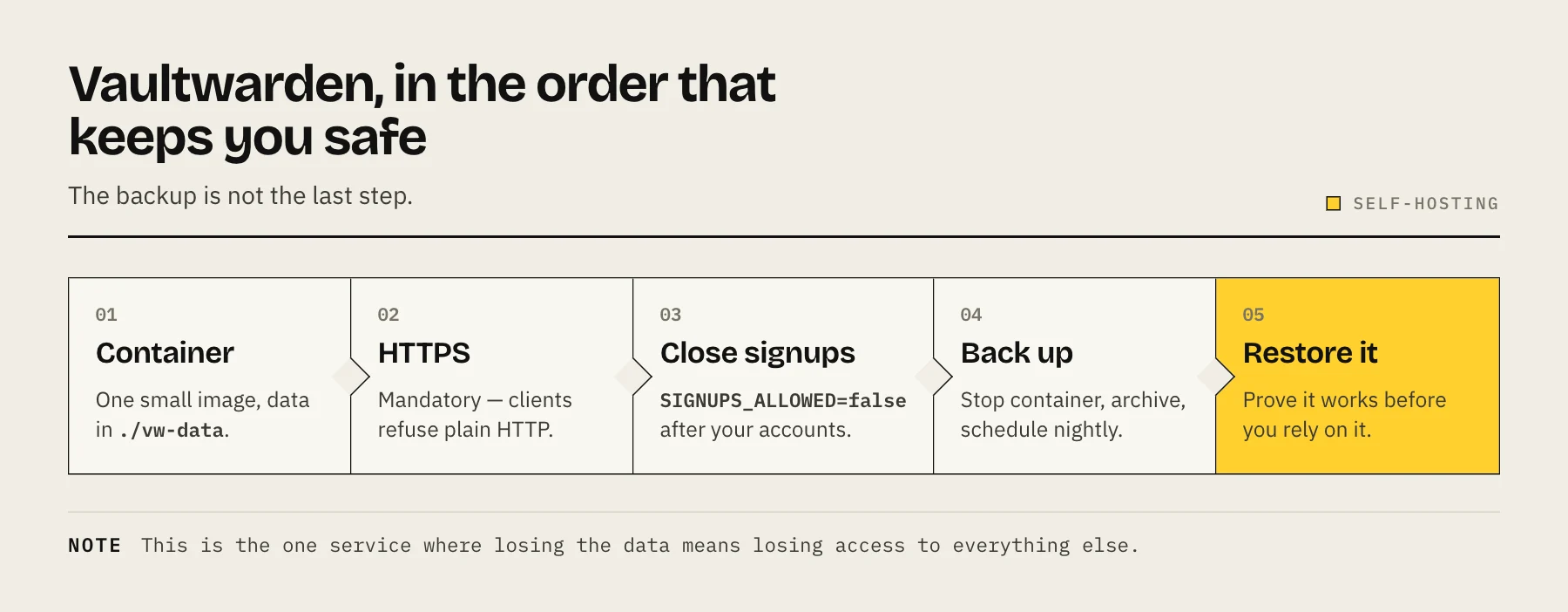
Before you start: think about the failure mode
This service is different from the others on your NAS. If Jellyfin breaks, you watch something else. If your password manager's data is gone and you have no backup, you are locked out of your entire digital life.
So three rules before you install anything:
- The backup comes first, not later. Set it up in the same session.
- Keep the Bitwarden apps' offline cache in mind — clients hold an encrypted local copy, which buys you time but is not a backup.
- Never make it the only place your recovery codes live. Store the master password and 2FA recovery codes somewhere physical.
Step 1 — The compose file
services:
  vaultwarden:
    image: vaultwarden/server:latest
    container_name: vaultwarden
    restart: unless-stopped
    volumes:
      - ./vw-data:/data
    ports:
      - "8081:80"
    environment:
      - DOMAIN=https://vault.example.com
      - SIGNUPS_ALLOWED=true
      - ADMIN_TOKEN=<a long random string>
Notes on those settings:
DOMAIN must be the public HTTPS URL you will actually use. Vaultwarden uses it to generate links and for WebAuthn.
SIGNUPS_ALLOWED=true only until you have created your accounts, then set it to false and recreate the container. Leaving open registration on an internet-reachable instance is how strangers end up in your vault server.
ADMIN_TOKEN protects the admin panel at /admin. Generate a long random value. Current Vaultwarden versions recommend an Argon2 hash here rather than plain text (a plain-text token still works but triggers a security warning) — check the documentation for your version and generate it with the built-in vaultwarden hash helper.
Step 2 — HTTPS is mandatory
This is not a hardening recommendation, it is a requirement. The Bitwarden web vault relies on Web Crypto APIs that browsers restrict to secure contexts, so over plain HTTP it will not work properly, and the mobile apps expect a valid certificate chain.
Put a reverse proxy in front with a valid certificate. With Caddy that is:
vault.example.com {
    reverse_proxy 192.168.1.50:8081
}
See reverse proxy explained for the general setup.
For a LAN-only deployment, use DNS-01 certificate validation to get a real certificate for a hostname that only resolves privately. You get valid HTTPS with nothing exposed to the internet.
Step 3 — Create your account, then close registration
Open your domain, register, and create the accounts your household needs. Then set SIGNUPS_ALLOWED=false and recreate the container.
If you want to invite people later, use the admin panel to send invitations rather than reopening registration.
Step 4 — Set up the backup, now
The entire vault is in the vw-data folder. Specifically:
db.sqlite3— the vault databasersa_key*— token signing keysattachments/— file attachmentsconfig.json— admin panel settings
Do not simply copy db.sqlite3 while the container is running. A live SQLite file can be copied mid-write and be inconsistent. Use SQLite's backup command or stop the container briefly.
A simple approach that works:
docker compose stop vaultwarden
tar czf vw-backup-$(date +%F).tar.gz vw-data/
docker compose start vaultwarden
A few seconds of downtime, a consistent archive. Schedule it nightly, keep several versions, and send it offsite — see 3-2-1.
Then restore it. Extract the archive somewhere else, point a test container at it, and log in. Do this once now and once a year afterwards.
Step 5 — Configure the clients
Install the Bitwarden extension or app, and on the login screen open the settings gear to set the self-hosted server URL before entering your credentials. This is the step people miss — entering credentials first sends them to Bitwarden's cloud, where the account does not exist.
Once configured, everything works exactly as the hosted service does.
Step 6 — Turn on two-factor authentication
Your master password protects the vault. Add a second factor: TOTP is supported and works well, and WebAuthn works if your DOMAIN is set correctly.
Store the 2FA recovery code somewhere outside the vault. Printed, in a safe, or in another password manager. A second factor you cannot bypass when the server is down is a lockout, not security.
Access: exposed or private?
Private (recommended for most). Keep Vaultwarden reachable only over Tailscale or your LAN. Bitwarden clients cache an encrypted copy locally, so you can still read your vault when the server is unreachable — you just cannot sync changes.
Public. Necessary if you need to add credentials from arbitrary devices. If you go this way: keep it patched, close registration, use MFA, put an authentication layer in front if you can, and watch the logs.
The private option is right for most households, and the client-side cache makes it far less inconvenient than it sounds.
Maintenance
- Pin the image tag and update deliberately after reading the release notes.
- Back up before every update.
- Check the admin panel occasionally for unexpected accounts.
- Vaultwarden is a community project, not Bitwarden's official server. It is widely used and well maintained, but it is a different codebase and does not carry Bitwarden's audits.
FAQ
Is Vaultwarden as secure as Bitwarden? The encryption happens client-side in the official Bitwarden apps, so your vault is encrypted before it reaches any server. The server implementation matters for availability and for the API surface, and Vaultwarden has not been through the same formal audits. For a private, non-exposed instance the risk profile is reasonable.
Can I import from another password manager? Yes, through the Bitwarden web vault's import tool, which supports most common formats.
What if the NAS dies? Restore vw-data onto a new container. This is why the backup and the restore test matter more here than anywhere else.
Can my family share passwords? Yes, using organisations and collections, the same as hosted Bitwarden.
Does it need much hardware? Very little — well under 1 GB of RAM. It is one of the lightest services you can run.
Sources
- vaultwarden README — vaultwarden (GitHub)
- Enabling admin page — vaultwarden wiki
- Enabling HTTPS — vaultwarden wiki
- Backing up your vault — vaultwarden wiki
- Access a self-hosted server (change client environment) — Bitwarden Help Center