
Homelab & Home Server
Docker PUID and PGID Explained for NAS Users
Fix NAS Docker permission errors by understanding Linux UID/GID, PUID/PGID image conventions, bind mounts, ACLs and a safe troubleshooting workflow.
Quick answer: Files on a NAS are owned by numeric Linux user and group IDs. A container writing to a bind mount needs an identity the host permits. PUID and PGID are image-specific environment variables used by some images to choose that identity; they are not universal Docker settings.
Most “permission denied” problems come from mixing three views: the NAS account name, numeric host ownership and the user running inside the container.
The three identities
- Host owner: numeric UID/GID on the NAS filesystem.
- Container process user: the UID/GID shown inside the container.
- Application convention: variables such as PUID/PGID, USER_ID/GROUP_ID or no variables at all.
Docker itself does not interpret PUID/PGID. The container image's startup script must support them. Always read the image's official documentation.
Find the host IDs
On a Linux-based NAS with shell access:
id media
ls -ln /volume1/media
The first command shows the account's numeric UID and groups. The second shows numeric ownership of the directory. NAS ACLs may add another permission layer not fully represented by traditional mode bits.
A Compose example
For an image that explicitly supports PUID/PGID:
services:
  app:
    image: vendor/app:tested-version
    environment:
      PUID: "1026"
      PGID: "100"
      TZ: America/New_York
    volumes:
      - /volume1/docker/app:/config
      - /volume1/media:/media:ro
    restart: unless-stopped
The media mount is read-only because this hypothetical app only needs playback. Docker documentation notes that bind mounts are writable by default and can modify or delete host files; use :ro whenever writes are unnecessary.
Why chmod 777 is the wrong fix
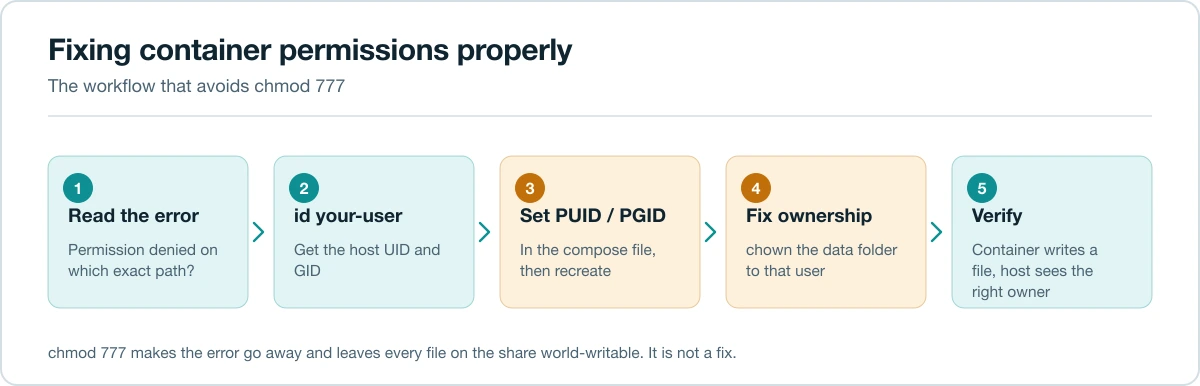
World-writable permissions can hide the identity mismatch while giving every local process broad access. It also fails to explain why upgrades or newly created files break again.
Instead:
- Decide which service account/group should own the data.
- Give that group only required read/write/execute rights.
- Run the container as a compatible UID/GID using the image's supported mechanism.
- Verify newly created files inherit usable ownership.
A safe troubleshooting workflow
1. Inspect the running process
docker exec app id
docker inspect app --format '{{json .Config.User}}'
The image may start as root and drop privileges later, so inspect the actual process or a shell launched as the application user when documentation specifies one.
2. Inspect mounts
docker inspect app --format '{{json .Mounts}}'
Confirm the source path exists on the Docker host, the destination is correct and the mount is read-write only when intended. A typo can make Docker create a new empty directory when using -v, which looks like lost data.
3. Test access without changing everything
Try listing the directory and creating one temporary file as the container user. If reads work but writes fail, inspect directory write and execute permissions, ACLs and filesystem read-only state.
4. Check parent directories
The process needs execute/traverse permission on every parent directory. A writable final folder is useless if /volume1/private blocks traversal.
5. Check NAS ACLs
Synology, QNAP and TrueNAS interfaces can manage ACLs beyond chmod. Use the platform's supported permission editor where appropriate; a later GUI change may overwrite manual shell adjustments.
user: vs PUID/PGID
Compose also supports a user field:
services:
  app:
    user: "1026:100"
This asks Docker to run the container process with that identity. It can break images that need root during startup to adjust files or bind privileged ports. PUID/PGID may be safer for images designed around that convention because their entrypoint performs the expected setup.
Do not set both blindly. Follow the image's documented method.
Named volumes vs bind mounts
Docker-managed named volumes reduce dependence on exact NAS paths, but they can be harder to browse and include in platform backup jobs. Bind mounts make data location explicit and easy to back up, but host permissions become your responsibility.
Whichever you use, document where persistent data lives and run a restore test. Recreating a container does not restore its database.
Special cases
- Rootless Docker: UID mapping can make host ownership look different inside the container.
- NFS: server-side UID/GID and root-squash behavior apply.
- SMB-mounted paths: permission semantics may not behave like a local Linux filesystem.
- SELinux: labels can deny access even when mode bits look correct.
- Kubernetes: securityContext/runAsUser replaces many Compose patterns.
Security checklist
- Avoid privileged mode unless the application truly needs it.
- Mount libraries read-only when the app should not modify them.
- Do not mount /, /var/run/docker.sock or broad system paths casually.
- Use separate service accounts for unrelated applications.
- Back up configuration and databases, not container images.
- Review permissions after migrations because numeric IDs can change.
For remote administration, use Tailscale on a NAS rather than exposing Docker management ports. For HTTPS application publishing, see Reverse Proxy Explained.
Sources
File creation and umask
Matching UID/GID is only part of collaboration. The process umask controls permissions on newly created files. A service may create group-owned files that are not group-writable, breaking another container. Use the image's documented UMASK setting or shared-group strategy, then verify actual output with ls -ln.
Do not blindly set umask 000. Choose the narrowest value that supports the applications sharing the directory.
Migration trap: numeric IDs change
When moving to a new NAS, the account named media may receive a different numeric UID. Existing files still store numbers, not names. Record service UIDs/GIDs before migration, then either recreate compatible identities or recursively adjust ownership after a verified backup.
FAQ
What values should PUID and PGID use? The numeric ID of the intended NAS service account and group, but only when the image documents those variables.
Why can root inside the container not write? Root-squash, rootless mapping, SELinux, read-only mounts or NAS ACLs can still deny access.
Why is the mounted folder empty? The host path may be wrong, may not exist on the Docker daemon host, or may hide files built into the image at the mount destination.
Should containers share one group? Only when they legitimately share data. Separate applications should not gain broad access merely to simplify troubleshooting.
Can I fix ownership with chown -R? It can be appropriate after confirming the target path and backup, but a mistaken recursive chown can damage unrelated data. Test on a small directory first.
Debug record to keep
For each container, document image/version, process UID/GID, supported identity variables, host source paths, container destinations, read/write mode and backup path. This turns the next permission failure from guesswork into a comparison against known-good state.
Backup permissions as well as files
A file backup may preserve content but lose ACLs, extended attributes or ownership required by the application. Record the restore method supported by the NAS and test it into a temporary path. After restore, compare numeric ownership, ACL entries and the container's ability to start and write—not merely the number of files. For databases, use an application-aware export in addition to volume backup. This turns permissions from undocumented host state into a recoverable part of the service. Repeat the test after a NAS migration or major image change.
Keep the verified ownership and restore result beside the Compose file.
Related guides
Last reviewed: July 2026.