Immich runs as three containers — the server, PostgreSQL and Valkey (a Redis-compatible cache) — plus a machine-learning service for face and object search. Give it a compose file, a data folder on fast storage for the database, and your
PUID/PGID. Then pin the image tag, back up the database as well as the photos, and keep Google Photos running in parallel for a month before you switch off.
Immich is the first self-hosted photo app that gets the mobile experience right, which is why it has replaced every previous attempt. The setup is straightforward; the parts that matter are the ones that protect you afterwards.
Before you start
- Docker with Compose on your NAS — see Docker on a NAS if this is new.
- 8 GB of RAM is recommended; 6 GB is the documented minimum, and 4 GB works only with machine learning disabled. Machine-learning indexing is the heavy part.
- SSD storage for the database if at all possible. Postgres on a spinning disk is the most common cause of a sluggish Immich.
- Your PUID and PGID — run
id your-usernameover SSH. - Storage for your library plus a meaningful margin for thumbnails and transcoded video.
Read the release notes first
Until its first stable release (v2.0.0, October 2025), Immich carried a prominent warning that the project was under very active development and should not be your only copy of your photos. Breaking changes between releases have happened, and upgrades occasionally require steps in a specific order.
This is not a reason to avoid it. It is a reason to:
- Pin a version tag rather than running
latest. - Read the release notes before every upgrade.
- Back up the database with the files, every time.
That banner was removed with v2.0.0, which also moved the project to semantic versioning, but the project still moves quickly and the habits above still apply.
Step 1 — Get the official compose files
Immich publishes a docker-compose.yml and a .env file, and these are the supported way to run it. The stack is more than one container and the pieces have to match versions.
Download both into a dedicated folder — for example /volume1/docker/immich/.
Step 2 — Configure the environment file
The .env file is where you set:
UPLOAD_LOCATION=/volume1/photos/immich
DB_DATA_LOCATION=/volume1/docker/immich/postgres
DB_PASSWORD=aLongRandomPassword123
IMMICH_VERSION=v3.x.x
TZ=Europe/London
UPLOAD_LOCATION is where your photos live. Put it on your bulk storage.
DB_DATA_LOCATION is the Postgres data directory. Put this on SSD if you have one — it is the single biggest performance factor.
IMMICH_VERSION — set it to a specific release, not release. This is what turns an upgrade into a decision rather than a surprise.
Step 3 — Start the stack
docker compose up -d
docker compose logs -f immich-server
First start pulls several images and runs database migrations. Give it a few minutes, then open http://your-nas-ip:2283.
The first account you register becomes the administrator.
Step 4 — Set up the mobile app
Install Immich from the App Store or Play Store, enter your server URL, and sign in.
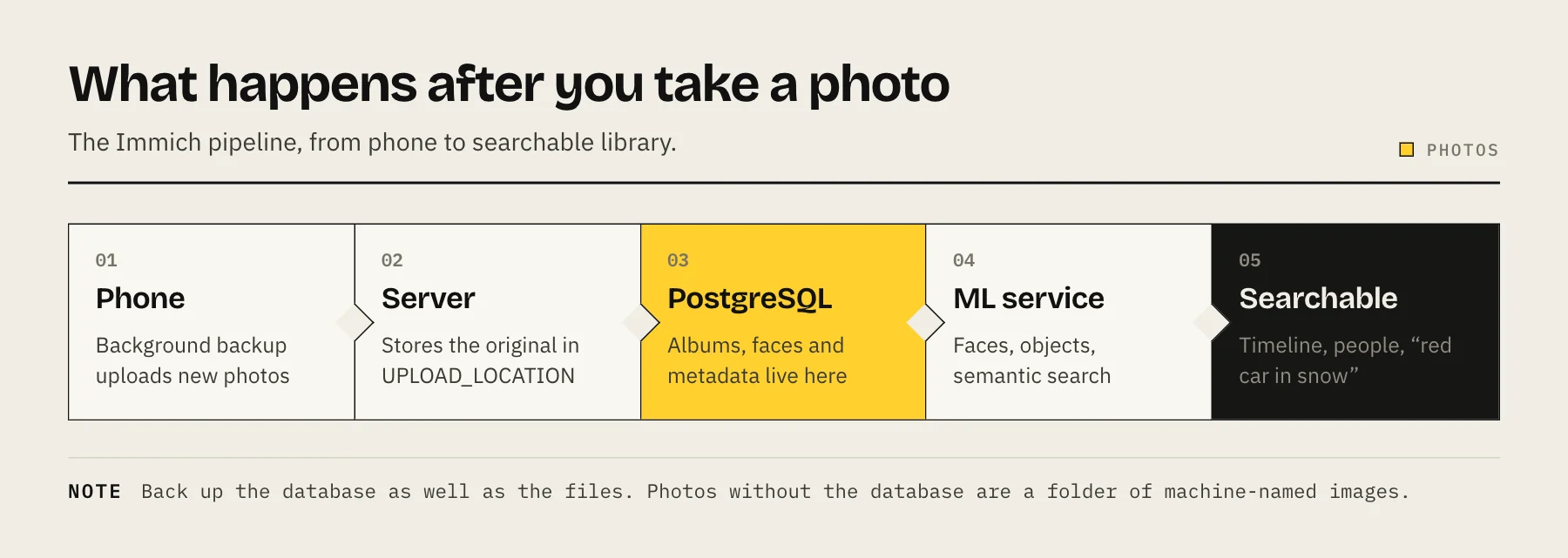
Then enable background backup and select which albums to include. This is the feature that makes the whole thing work — without it you are manually uploading, and manual uploading stops within a fortnight.
On iOS, background execution is limited by the operating system; opening the app periodically ensures everything catches up. On Android, exclude Immich from battery optimisation or backups will stall.
Do not enable "delete from device after upload" yet. Not until you have verified the backup, and verified your backup of the backup.
Step 5 — Let the machine learning finish
Immich runs its own models locally for face recognition, object detection and semantic search. The first indexing pass over a large library is CPU-intensive and can run for hours or days.
This is normal. Let it complete before judging performance. If your NAS also serves media, consider running the initial import overnight.
A supported GPU can accelerate this substantially, though configuration varies by hardware and is worth researching for your specific setup.
Step 6 — Back it up properly
This is the step that matters most, and the one people get wrong.
Your photos on disk are only half the system. Albums, faces, tags, search metadata and user accounts all live in PostgreSQL. Restore the files without the database and you have a folder of images with machine-generated names — exactly the situation you were trying to escape.
Back up both, as a matched pair:
- The upload location — your actual photos.
- A database dump, not a file-level copy of the running Postgres directory. Copying live database files can produce an inconsistent snapshot. Use
pg_dump(Immich's documentation covers the exact command for its container).
Then get that offsite — see the 3-2-1 backup rule and cloud backup for NAS.
Importing an existing library
Two paths, and they behave differently:
External libraries let Immich index an existing folder structure in place, without moving or renaming anything — mount it read-only (:ro) so Immich cannot delete files. Good when you already have an organised archive you want to keep as-is.
Google Takeout imports need care. Takeout puts each photo's metadata in a separate JSON sidecar rather than in the image EXIF. Import the archives naively and every photo is dated the day you downloaded it. Use immich-go, the community tool Immich's documentation recommends for Takeout archives, rather than dragging folders in.
See Immich vs Google Photos for the full migration approach.
Remote access
Photos are personal. Do not port-forward this.
Use Tailscale so the mobile app can back up from anywhere without exposing anything. If you need to share albums with people outside your household, put it behind a reverse proxy with proper authentication — see Cloudflare Tunnel vs Tailscale vs reverse proxy.
Troubleshooting
Uploads fail from the app — check the reverse proxy body-size limit if you have one in front, and confirm the server URL includes the port.
Search returns nothing useful — machine learning has not finished indexing. Check the administration jobs page.
Everything is slow — the database is almost certainly on a spinning disk.
Permission errors on the upload folder — PUID/PGID mismatch. See Docker PUID and PGID.
FAQ
How much storage do I need? Your library plus a margin for thumbnails and transcoded video — noticeably more than the raw total.
Does it support RAW? Yes, with thumbnail generation for common formats. Check the current supported list for your camera.
Can multiple people use one server? Yes, each with their own library and optional shared albums.
Is it safe to delete photos from my phone after upload? Only once you have verified the Immich copy and have a tested backup of the Immich data. That is two independent copies before the phone stops being one.
Sources
- Requirements — Immich docs
- Docker Compose installation — Immich docs
- Backup and Restore — Immich docs
- External Libraries — Immich docs
- The Immich CLI (Google Takeout / immich-go recommendation) — Immich docs
- v2.0.0 stable release — Immich blog