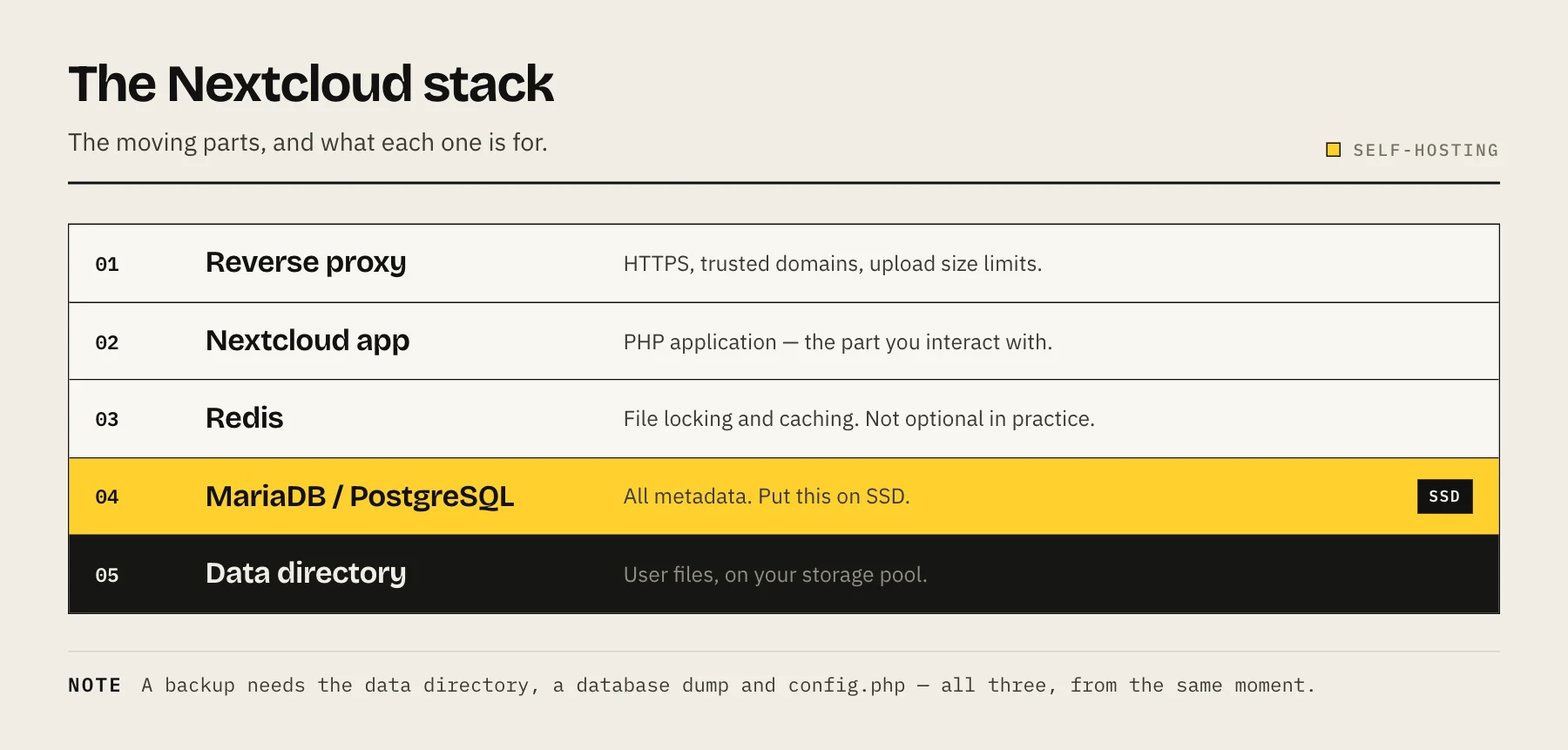
Run Nextcloud as a Compose stack — the app, a MariaDB or PostgreSQL database, and Redis for caching — behind a reverse proxy with HTTPS. Skip the image's default SQLite setup for anything real: it will not perform, and migrating later is painful. Budget for maintenance, because Nextcloud is a platform, not an appliance.
Nextcloud gives you file sync, sharing, calendars, contacts and a large app ecosystem on your own hardware. It is genuinely powerful and it asks more of you than any other app in this category.
Decide first: do you actually want Nextcloud?
Worth asking, because a lot of people install it and then discover they wanted something simpler.
You want Nextcloud if you need Dropbox-style sync across devices, sharing with external people, calendars and contacts, collaborative document editing, or a platform to build on.
You do not need it if you just want file access on your own network. An SMB share is faster, simpler and has nothing to maintain — see SMB vs NFS.
You want something else if your goal is photos (Immich is far better at that) or documents (Paperless-ngx is purpose-built) — see how to set up Paperless-ngx.
Before you start
- Docker with Compose — see Docker on a NAS.
- 4–8 GB RAM, more with several active users.
- SSD for the database, if you have one. This is the difference between responsive and sluggish.
- A domain and a reverse proxy if you want HTTPS and external access — see reverse proxy explained.
- Your PUID and PGID.
Step 1 — The compose stack
services:
  db:
    image: mariadb:11
    container_name: nextcloud-db
    restart: unless-stopped
    command: --transaction-isolation=READ-COMMITTED --log-bin=binlog --binlog-format=ROW
    volumes:
      - ./db:/var/lib/mysql
    environment:
      - MYSQL_ROOT_PASSWORD=change-this
      - MYSQL_PASSWORD=change-this-too
      - MYSQL_DATABASE=nextcloud
      - MYSQL_USER=nextcloud

  redis:
    image: redis:alpine
    container_name: nextcloud-redis
    restart: unless-stopped

  app:
    image: nextcloud:stable
    container_name: nextcloud
    restart: unless-stopped
    depends_on:
      - db
      - redis
    ports:
      - "8080:80"
    volumes:
      - ./html:/var/www/html
      - /volume1/nextcloud-data:/var/www/html/data
    environment:
      - MYSQL_HOST=db
      - MYSQL_DATABASE=nextcloud
      - MYSQL_USER=nextcloud
      - MYSQL_PASSWORD=change-this-too
      - REDIS_HOST=redis
      - NEXTCLOUD_TRUSTED_DOMAINS=cloud.example.com
Change every password. Keep ./db on SSD if you can, and put the bulk data volume on your storage pool.
Redis is not optional in practice. Without it, file locking uses the database and performance degrades badly under any concurrency.
Step 2 — Start and complete setup
docker compose up -d
Open http://your-nas-ip:8080, create the admin account, and confirm the database details are already populated from the environment.
Step 3 — Put it behind HTTPS
Nextcloud's mobile and desktop clients expect a valid certificate. Point your reverse proxy at port 8080 and let it handle TLS.
Two settings that cause most of the problems:
Trusted domains. Nextcloud rejects requests for hostnames it does not know. Set NEXTCLOUD_TRUSTED_DOMAINS, or edit config/config.php.
Trusted proxies and overwrite settings. Nextcloud needs to know it is behind a proxy, or it will generate http:// links and redirect loops. Set trusted_proxies, overwriteprotocol and overwritehost in config.php.
Raise the upload limit at the proxy. Default body-size limits silently break large uploads.
Step 4 — Work through the admin warnings
Nextcloud's Administration → Overview page lists configuration issues, and it is unusually good at telling you exactly what to fix. Common items:
- Missing cron job. Switch background jobs from AJAX to system cron — this genuinely matters for performance.
- Missing database indices. Run the recommended
occcommand. - Missing PHP modules for previews or performance.
- Memory caching not configured — Redis fixes this.
- Security headers — set these at the reverse proxy.
Working through this list is most of the difference between a fast Nextcloud and a slow one.
Step 5 — Back it up
Three things, together:
- The data directory — user files.
- A database dump —
mariadb-dump(ormysqldumpfor MySQL), not a copy of the live database directory. - The
config/config.phpfile and thehtmlvolume.
Put Nextcloud into maintenance mode before a backup for consistency, or take the database dump and the file copy as close together as possible. Then get it offsite — 3-2-1.
Upgrading
Nextcloud upgrades one major version at a time. Skipping versions is unsupported and will fail.
Every time: back up first, read the release notes, change the tag, and let the upgrade complete before touching anything. Apps sometimes lag behind core releases, so check that anything you depend on supports the target version.
Pin to stable or a specific major version rather than latest.
Performance expectations
Nextcloud is a PHP application with a database behind it. It is not going to feel like an SMB share, and no amount of tuning will make it so. What tuning does achieve:
- Redis caching — the largest single improvement.
- Database on SSD — the second largest.
- System cron instead of AJAX.
- Preview generation pre-run rather than on demand for large photo folders.
For bulk file transfer on your own LAN, use an SMB share alongside Nextcloud. Use Nextcloud for sync, sharing and mobile access.
FAQ
Nextcloud AIO or manual compose? The all-in-one image is easier to start and more opinionated about how it runs. A manual stack gives you control and fits better alongside an existing reverse proxy. Both are supported.
Can I point it at an existing SMB share? Via External Storage, yes — but files added outside Nextcloud need scanning before they appear, and it is slower than native storage.
Is it secure enough to expose? With HTTPS, strong passwords, MFA on admin accounts and prompt updates, it is a mainstream self-hosted application. Keep it patched — that is the condition.
Why is my sync slow? Many small files are the usual cause, then database performance, then the network. Check the admin overview first.
Sources
- nextcloud/docker README — GitHub (Nextcloud)
- Transactional file locking — Nextcloud Administration Manual
- Upgrade manually — Nextcloud Administration Manual
- Backup — Nextcloud Administration Manual
- Background jobs — Nextcloud Administration Manual
- Nextcloud All-in-One — GitHub (Nextcloud)