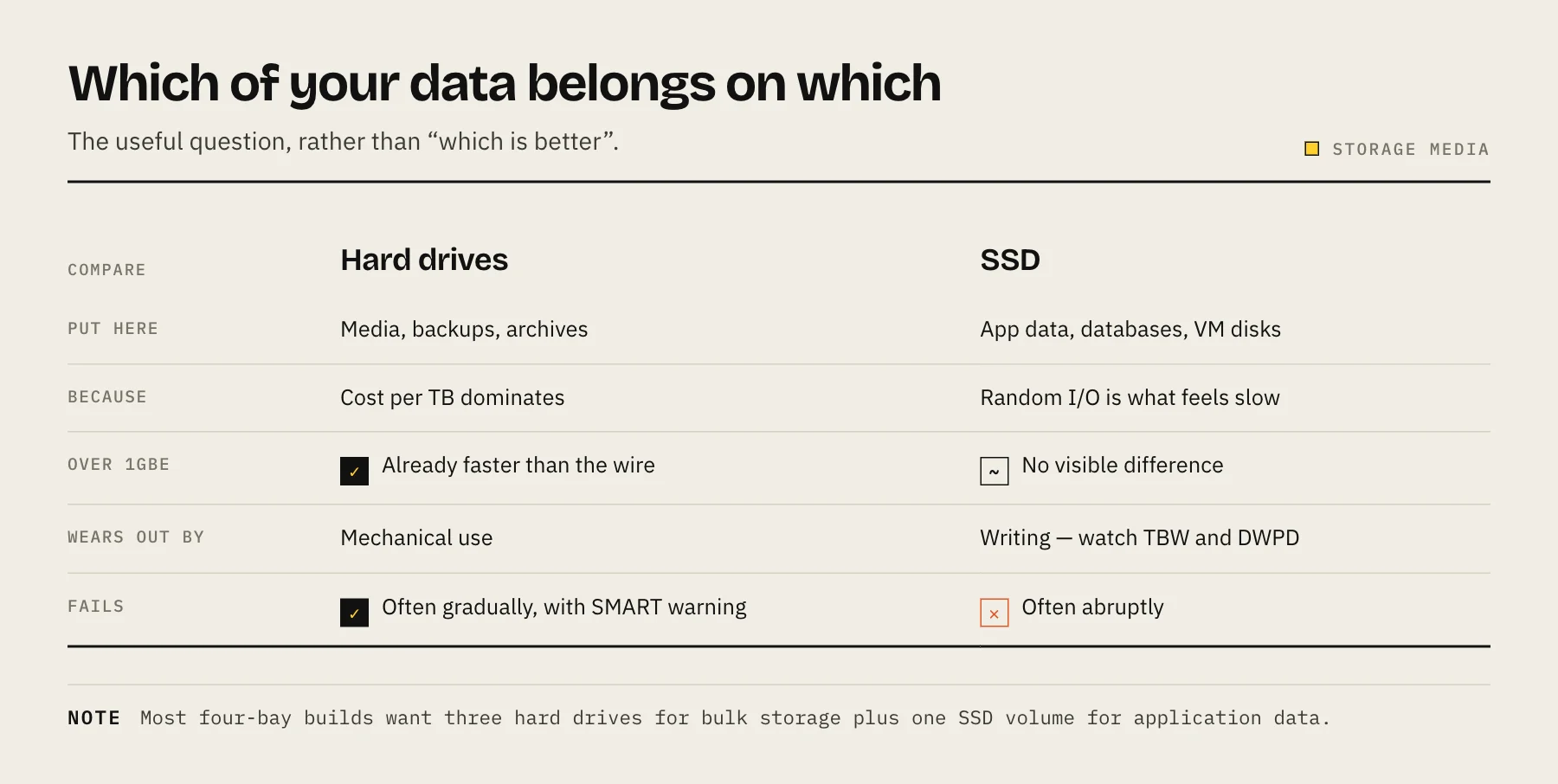
Use hard drives for bulk storage — media, backups, archives — where cost per terabyte dominates. Use SSDs for the things that feel slow: application data, container volumes, databases, VM disks and photo library indexes. Most good NAS builds use both, and the mistake is paying SSD prices for data that never needed the speed.
The comparison is often framed as "which is better", which is the wrong question. They fail differently, cost differently, and are good at different things. What you actually want to decide is which of your data belongs on which.
The trade in one view
| Hard drive | SSD | |
|---|---|---|
| Cost per TB | Far lower | Several times higher |
| Sequential speed | ~100–250 MB/s | Limited by the interface |
| Random I/O | Poor — the head has to move | Excellent |
| Noise and vibration | Yes — the main source of NAS noise | Silent |
| Idle power | Several watts each | Very low |
| Capacity available | Very high per drive | Lower at sane prices |
| Wear mechanism | Mechanical | Finite write endurance |
| Failure style | Often gradual, some warning | Often abrupt |
Where the network makes this moot
This is the part people skip, and it changes the answer.
A single modern hard drive sustains roughly 100–250 MB/s on sequential transfers. A 1GbE network caps you at about 110 MB/s. So for large file copies over a standard home network, a hard drive is already faster than the wire — and an SSD will feel identical.
SSDs only show their advantage over the network when you have 2.5GbE or faster, or when the workload is random rather than sequential: many small files, database queries, container startup, photo library thumbnail generation.
Before buying flash for speed, check whether your bottleneck is actually the network — see 2.5GbE vs 10GbE for NAS.
What belongs on spinning disks
- Media libraries. Streaming a film is a sequential read of a few megabytes per second. A hard drive is enormously overqualified.
- Backups and archives. Written in bulk, read rarely.
- Anything measured in tens of terabytes, where the cost difference is decisive.
What belongs on flash
- Container and application data. This is the single highest-value use of a small SSD in a NAS. Databases, indexes and config files are random-access workloads, and moving them off spinning disks makes the whole system feel different.
- Virtual machine disks.
- Photo library databases — Immich, Nextcloud and similar keep metadata in Postgres, which is exactly the wrong workload for a hard drive.
- Active project files — video editing scratch space, large codebases.
The common good arrangement in a four-bay NAS is three hard drives for bulk storage plus one SSD volume for application data. Check whether your model has dedicated M.2 slots — many do, and on some platforms those slots can be used as a storage pool rather than only as cache.
SSD cache: usually not the answer
Many NAS platforms offer an SSD read (or read-write) cache in front of a hard drive pool. It is tempting and it is frequently a disappointment.
Read cache only helps data that is read repeatedly. Media streaming is mostly read-once, so the hit rate is poor. It also does nothing until the cache has warmed up.
Read-write cache helps more but introduces risk: a cache device failing with unwritten data on it can affect the pool, which is why platforms generally require a mirrored pair.
RAM is the first cache, and it is far faster. Adding memory usually helps more than adding a cache device, and costs less — see how much RAM a NAS needs.
The honest guidance: if you have a specific random-I/O workload, put it on an SSD volume rather than trying to accelerate a hard drive pool with a cache. Caches help a narrow set of cases and add complexity to all of them.
Endurance is the SSD question that matters
Hard drives wear mechanically. SSDs wear by writing — each cell tolerates a finite number of program/erase cycles, and manufacturers publish this as TBW (terabytes written) or DWPD (drive writes per day).
For a NAS this matters more than in a laptop, because some NAS workloads write constantly: surveillance recording, a write cache, busy databases, or a Docker host with chatty logging. Consumer SSDs used as a write cache in a busy system can burn through their rated endurance far faster than expected.
Work out your realistic daily write volume before choosing a drive — our guide to NAS SSD endurance, TBW and DWPD covers the arithmetic.
They fail differently, and it changes your backup thinking
Hard drives often give some warning: reallocated sectors, pending sectors, unusual noise. SMART monitoring genuinely helps — see SMART attributes that predict failure.
SSDs more often fail abruptly, particularly controller failures, where the drive simply stops being detected. Data recovery from a failed SSD is generally harder and more expensive than from a hard drive.
Neither changes the conclusion: redundancy keeps you running, backups keep your data. See the 3-2-1 backup rule.
All-flash NAS: when it makes sense
An all-SSD NAS is silent, low-power, fast at everything, and generates almost no heat. For a NAS that has to live in a bedroom, a studio or a small office, that is a genuine argument — see NAS noise, heat and placement.
The obstacle is cost per terabyte, which is still several times that of spinning disks. All-flash makes sense at modest capacities or where noise is the binding constraint. For a 40 TB media library it is not a serious proposition yet.
FAQ
Can I mix HDDs and SSDs in one NAS? Yes, in separate pools. Do not mix drive types within a single RAID array — the array runs at the slowest member's speed and the wear patterns differ.
Will an SSD make my file transfers faster? Over 1GbE, no — the network is the limit. Over 2.5GbE or faster, yes for some workloads.
Do SSDs need SMART monitoring too? Yes, but different attributes: percentage life used, media wearout indicator and total host writes rather than reallocated sectors.
Are NAS-branded SSDs worth the premium? They typically offer higher endurance ratings and power-loss protection. For a cache or a write-heavy volume that matters. For a lightly written application volume, a good consumer drive is usually fine.
Sources
- Create SSD Cache (DSM help) — Synology
- Choose a RAID Type for SSD Cache — Synology
- DS423+ Product Specifications (M.2 storage pool support, power) — Synology
- Immich requirements (database on local SSD) — Immich
- IronWolf 16TB data sheet — Seagate