For file sharing and a couple of light containers, 4 GB is genuinely enough. 8 GB is the sensible default for a NAS running Docker apps. Go to 16 GB or more only if you run virtual machines, a photo library with machine-learning indexing, or a large ZFS pool where you want a big read cache. The old "1 GB of RAM per TB for ZFS" rule is folklore and should not drive your purchase.
RAM is the upgrade people over-buy on and under-plan for at the same time: too much bought for the wrong reason, and then a machine whose memory is soldered down and cannot be expanded at all when it turns out to matter.
What the RAM is actually doing
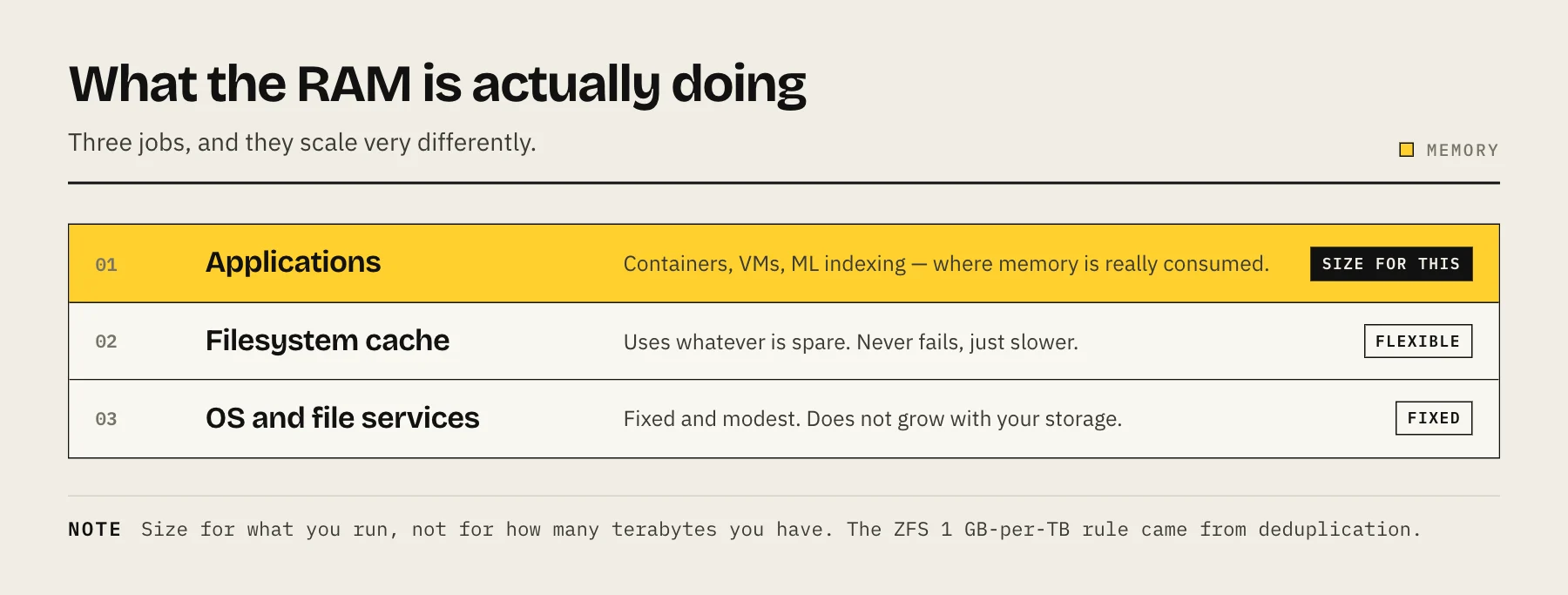
On a NAS, memory serves three distinct jobs, and they scale very differently:
1. The operating system and file services. SMB, NFS and the web UI need a fixed, modest amount — well under 1 GB in most cases. This does not grow with your storage.
2. Filesystem cache. Any spare memory is used to cache recently read data and metadata. More cache means fewer trips to slow spinning disks. This has diminishing returns and never fails outright — a smaller cache is simply slower.
3. Applications. Containers, VMs and media servers. This is where memory is genuinely consumed, and it is almost always the real reason a NAS needs more.
The mistake is sizing for (2) when your actual pressure is (3).
Sizing by what you run
| Workload | Practical RAM |
|---|---|
| File shares, Time Machine, backups only | 4 GB |
| Above + 3–6 light containers (Pi-hole, Vaultwarden, *arr stack) | 8 GB |
| Media server with transcoding | 8 GB |
| Immich or another ML photo library | 8–16 GB |
| Nextcloud with several active users | 8–16 GB |
| Virtual machines | 16 GB+ (sum the VMs, then add 4 GB for the host) |
| Large ZFS pool where you want heavy caching | 16–32 GB |
Add these up rather than picking the largest row. A NAS running Jellyfin, Immich and a handful of small containers is comfortably an 8–16 GB machine.
The ZFS "1 GB per TB" rule is not a rule
This number gets repeated constantly and is badly misapplied. It originated in enterprise guidance and, more importantly, in the requirements for deduplication — which is a feature almost nobody should enable on a home NAS, because its memory cost is enormous and its benefit on media and photo libraries is close to zero.
For ordinary ZFS use without dedup, the honest position is:
- ZFS works fine on 8 GB with a multi-terabyte pool. TrueNAS's own baseline requirements are far below 1 GB/TB.
- Extra RAM becomes ARC (the read cache), which improves read performance for frequently accessed data. It is a performance feature, not a correctness requirement.
- A 60 TB pool does not need 60 GB of RAM. It benefits from more RAM the same way any system does, with diminishing returns.
If you enable deduplication, the old rule becomes real again — and then some. Do not enable it.
ECC memory: worth it if the platform supports it
ECC detects and corrects single-bit memory errors. On a system whose entire job is storing data you cannot easily replace, that is a real benefit — a bit flipped in RAM before a checksum is calculated gets written as "correct" corrupt data, and no filesystem can catch that afterwards.
The practical position:
- If you are building a DIY NAS, choose a platform that supports ECC. The cost premium on suitable hardware is modest and it is the right call for a storage machine.
- If you are buying a prebuilt consumer NAS, most use non-ECC memory and you have no choice. This is fine. Millions of them run for years without incident, and the failure it prevents is rare.
- Do not scrap a working non-ECC NAS to chase ECC. Spend that money on a better backup instead, which addresses far more failure modes.
Before you buy: can you even upgrade it?
Check this before anything else. Many entry-level NAS units — particularly two-bay consumer models — have RAM soldered to the board and cannot be upgraded at all. Others have one soldered module plus one free SODIMM slot, which means the maximum is lower than the chipset would suggest and mixed modules may run at the slower module's speed.
Look up the specific model. "Supports up to 16 GB" in marketing copy sometimes means 8 GB soldered plus an 8 GB slot, not two free slots.
Vendor-approved vs third-party modules
NAS vendors sell branded memory at a substantial premium and some publish compatibility lists that only include their own parts. Third-party SODIMMs of the correct type, speed and voltage generally work, and the community keeps informal compatibility lists for popular models.
Two caveats worth knowing:
- Some vendors display a warning when non-branded memory is detected, and may point at it if you raise a support case.
- Firmware updates have, on some platforms, changed behaviour around unrecognised modules. This is rare but not unheard of.
If the NAS holds data a business depends on, the vendor part removes an argument. For a home NAS, a well-reviewed third-party module of the correct specification is a reasonable saving.
How to tell if you actually need more
Do not guess. Look:
- Synology: Resource Monitor → Memory. Watch used versus cached, and check whether swap is being touched.
- TrueNAS: the dashboard shows ARC size and hit ratio. A consistently high ARC hit ratio means the cache is doing its job.
- Linux/Unraid:
free -h, anddocker statsfor per-container use.
The signal to act on is swap usage under normal load, or containers being killed for running out of memory. High "used" memory with plenty of cache and no swapping is a healthy system, not a full one — Linux is supposed to use free RAM for cache.
What RAM will not fix
If large file transfers are slow, the bottleneck is almost always the disks or the network, not memory. Check the 2.5GbE vs 10GbE guide for where the network ceiling actually sits, and remember a single spinning disk tops out at roughly 200–285 MB/s sequentially on its outer tracks, and less towards the inner tracks.
If video playback stutters, that is transcoding, not RAM — see setting up Jellyfin with Docker for hardware acceleration.
FAQ
Is an SSD cache a substitute for RAM? No. RAM caching happens first and is orders of magnitude faster. An SSD read cache helps a different, narrower set of workloads and adds complexity.
Can I mix module sizes? Usually yes, though the pair may run at the slower module's speed and some platforms are fussier than others. Matched pairs are the safe choice.
Does more RAM reduce drive wear? Marginally, by serving more reads from cache. It is not a meaningful reason to upgrade.
My NAS shows 90% memory used. Is that bad? Almost certainly not — that is the filesystem cache doing its job. Look at swap activity instead.
Sources
- TrueNAS Hardware Guide (memory sizing) — iXsystems / TrueNAS
- IronWolf Pro 20TB/18TB data sheet (max sustained transfer rate) — Seagate