Create a dedicated shared folder with a user quota on the NAS, enable SMB and the Time Machine service, then connect from macOS. The quota is not optional — without it Time Machine will grow until the volume is full. And a Time Machine sparsebundle is not a backup strategy on its own; it is one copy, on one device, in one building.
Network Time Machine has a reputation for being flaky. Most of that reputation comes from three specific mistakes: no quota, the wrong protocol, and treating it as the only backup. Get those right and it is reliable for years.
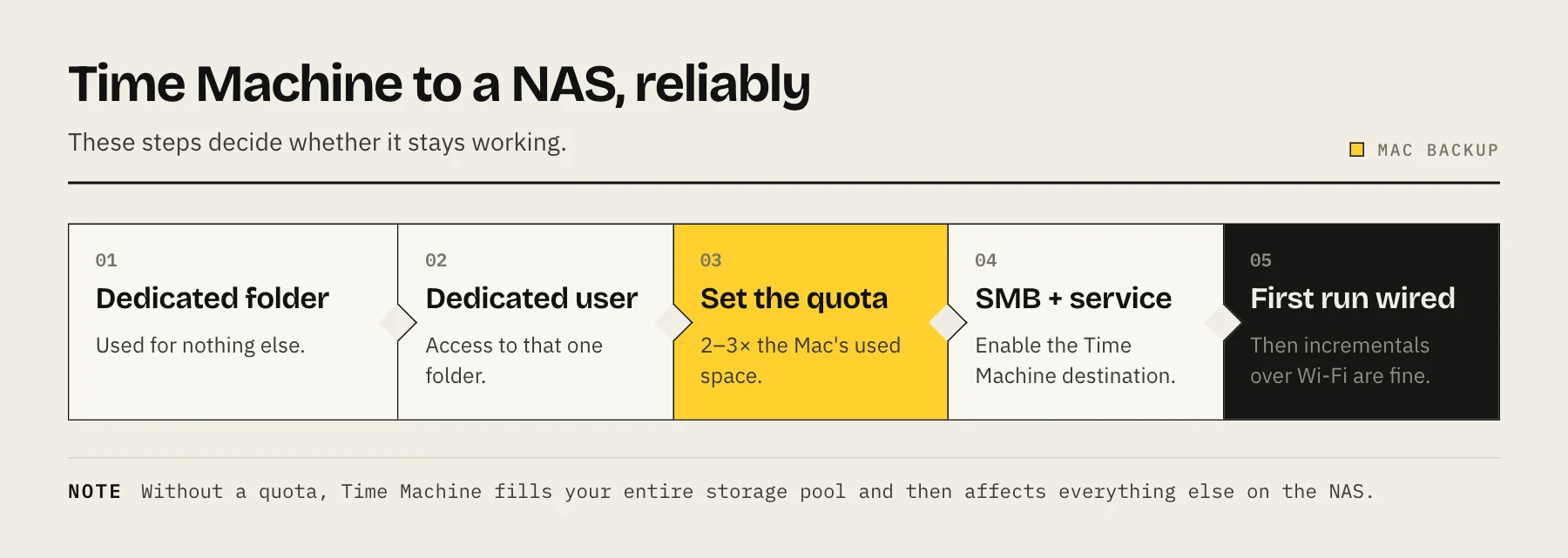
Step 1 — Create a dedicated shared folder
Do not point Time Machine at an existing shared folder that also holds documents or media. Time Machine writes a single large sparsebundle image and manages its own space; mixing it with other data makes quotas impossible and restores riskier.
Create a folder used for nothing else — TimeMachine, or one per Mac if you back up several.
Step 2 — Create a dedicated user account
Give Time Machine its own NAS account with access to that one folder and nothing else. Two reasons:
- The quota is applied per user, so a dedicated account is what makes the quota meaningful.
- If that credential is ever compromised, it reaches one backup folder rather than your whole NAS.
Use a long random password stored in the Mac's keychain. You will type it once.
Step 3 — Set the quota, and set it correctly
This is the step that decides whether the setup is stable.
Time Machine's design is to consume all available space and then delete its own oldest snapshots. Given an unbounded network share, it will happily fill your entire storage pool and then start affecting everything else on the NAS.
Set a user quota on the Time Machine account — on Synology this is Control Panel → User & Group → the account → Quota; QNAP and TrueNAS have equivalents under user or dataset settings.
How large? A common rule is two to three times the used space on the Mac. A Mac with 400 GB in use wants roughly 800 GB–1.2 TB to keep a useful depth of history. Less than 2× and you will only ever hold a handful of recent snapshots; much more than 3× buys diminishing returns.
Step 4 — Enable SMB and the Time Machine service
macOS uses SMB for network Time Machine destinations. AFP is deprecated and should be disabled.
- Synology DSM: Control Panel → File Services → SMB → enable SMB service. Then Control Panel → File Services → Advanced → enable Bonjour service discovery and Bonjour Time Machine broadcast via SMB, click Set Time Machine Folders and choose the shared folder.
- QNAP QTS: Control Panel → Applications → Time Machine, choose the account and folder.
- TrueNAS: create an SMB share with the Time Machine purpose/preset enabled on the dataset.
- Generic Samba: the share needs
fruit:time machine = yes(withvfs objects = catia fruit streams_xattr) for macOS to advertise it as a valid destination.
Step 5 — Connect from macOS
In Finder, connect to smb://nas-address/TimeMachine with the dedicated account and save the credential in the keychain. Then open System Settings → General → Time Machine → Add Backup Disk and choose the share.
Encrypt the backup when prompted. The sparsebundle sits on a NAS that other accounts may be able to reach; encryption means only the passphrase-holder can read it. Store that passphrase in a password manager — without it the backup is unrecoverable, and a Time Machine backup you cannot restore is just noise on a disk.
Step 6 — Let the first backup finish on Ethernet
The initial backup copies everything and can take many hours to over a day for a full Mac. Do it wired if you possibly can. Wi-Fi works, but a first full backup over Wi-Fi is where most "Time Machine is broken" stories begin — an interrupted initial sparsebundle is much more likely to end up needing a fresh start.
Once the baseline exists, incrementals over Wi-Fi are fine.
Making it actually reliable
Verify restores, not just backups. Once a quarter, restore a file from a few weeks back. Also confirm the Mac can see the backup in Time Machine's browse view — the failure mode people discover too late is a sparsebundle that mounts but will not restore.
Watch for the "backup verification failed" prompt. macOS periodically checks the sparsebundle's integrity, and when it fails it offers to start a new backup, silently discarding all history. If you see this more than once, look at the network path before accepting: flaky Wi-Fi, a switch with errors, or a NAS that sleeps aggressively are the usual culprits.
Stop the NAS from sleeping mid-backup. Aggressive disk hibernation can drop the connection at exactly the wrong moment. If verification failures are recurring, lengthen or disable the hibernation timer and see whether they stop.
Snapshot the Time Machine folder on the NAS. If the underlying pool supports snapshots, a snapshot of the sparsebundle gives you a rollback point if the image itself becomes corrupt. This is cheap insurance — see ZFS snapshots vs backups for what snapshots do and do not cover.
This is one copy, not a backup strategy
A Mac backing up to a NAS in the same room satisfies exactly one of the three requirements in the 3-2-1 backup rule. A fire, a flood, a burglary or ransomware that reaches the share takes the Mac and the backup together.
Add an offsite copy: either back the NAS itself up to cloud object storage — see best cloud backup for NAS — or run a second Time Machine destination on a rotating external drive that lives somewhere else. Time Machine supports multiple destinations and alternates between them automatically.
FAQ
Can several Macs share one NAS folder? Yes. Each Mac creates its own sparsebundle. Give each one its own NAS user account so quotas apply per machine rather than to the pool as a whole.
Why is my backup enormous compared to the Mac's used space? Time Machine keeps hourly, daily and weekly snapshots. Depth costs space, and that is the point. If it is genuinely disproportionate, check whether large virtual machine disk images or a Docker data directory are being included, and exclude them.
Can I use Time Machine over Tailscale from outside home? Technically yes, practically no. Latency and interruption make it fragile, and an incremental backup over a slow link can take hours. Back up locally and replicate the NAS offsite instead.
Should I use APFS or the sparsebundle format? For network destinations macOS decides this; you do not choose. Local external drives use APFS on current macOS versions.