Use Hyper Backup when you need versioned, restorable protection of NAS folders, packages and configuration. Use Cloud Sync when you need ordinary files synchronized between Synology and a cloud service. Sync improves availability and workflow; it is not automatically a backup because deletions and encryption can propagate.
The tools overlap at the destination list but solve different problems. Choosing by provider logo—rather than recovery behavior—is how a “cloud copy” fails during an incident.
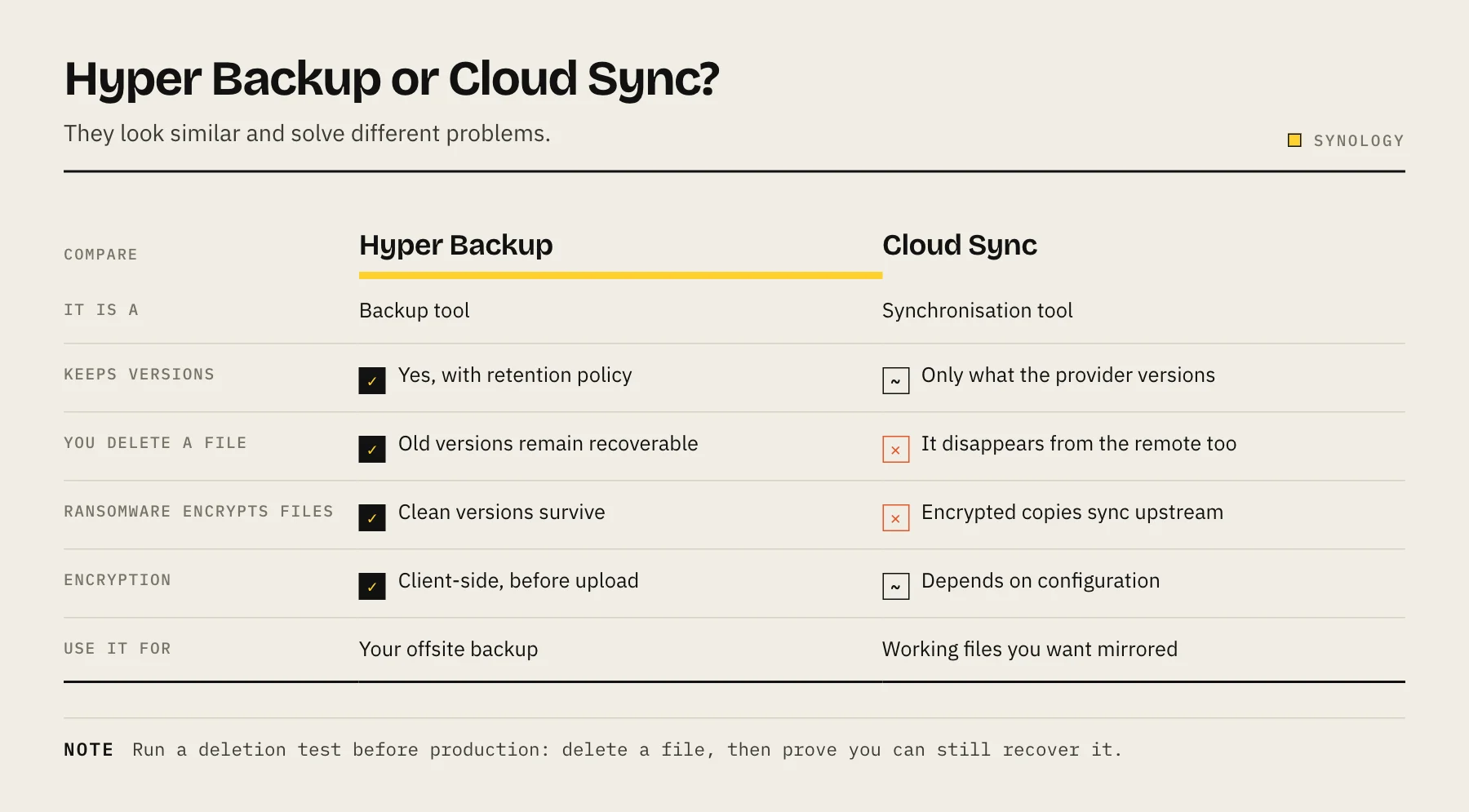
Side-by-side
| Question | Hyper Backup | Cloud Sync |
|---|---|---|
| Primary job | Versioned backup/recovery | File synchronization |
| Destination appearance | Backup repository | Ordinary cloud files |
| Restore interface | Hyper Backup/Explorer | Copy/sync files back |
| Package/config protection | Supported for eligible packages | No |
| Two-way sync | No | Yes, where supported |
| Deletion propagation | Controlled by versions/rotation | Can propagate by sync direction/settings |
| Client-side encryption | Repository encryption | Filename/content behavior varies by task/provider |
Interface options vary by DSM, package and provider. Verify current Synology documentation before relying on a feature.
What Hyper Backup is designed for
Hyper Backup creates a backup task with schedule, versions and rotation. It can protect selected shared folders, system configuration and supported package data to local disks, another NAS or cloud/object storage.
The destination is not intended as a normal collaborative folder. A proprietary/versioned repository requires the correct recovery tool and encryption key. That trade buys history and structured restore.
Use it for:
- NAS disaster recovery.
- Deleted/changed-file history.
- Package and configuration protection.
- Encrypted offsite repositories.
- A defined retention schedule.
What Cloud Sync is designed for
Cloud Sync moves ordinary files between NAS and supported cloud services. Tasks can be upload-only, download-only or bidirectional depending on provider and configuration.
Use it for:
- Keeping a cloud working folder available locally.
- Publishing/exporting selected files to cloud storage.
- Ingesting cloud files into the NAS.
- Cross-device workflows that require normal cloud objects.
The danger is semantic: if a bidirectional task treats deletion as a change to synchronize, deleting or encrypting source files can affect the cloud side. Provider version history may help, but it is a separate retention system that must be verified.
Four decision scenarios
“I want an offsite NAS backup”
Use Hyper Backup with client-side encryption and tested versions. Create a restricted provider key and test a restore. Our Synology to Backblaze B2 guide covers one implementation.
“I edit the same cloud documents from several devices”
Use Cloud Sync, but define conflict and deletion behavior. Keep a separate backup because synchronization can faithfully distribute mistakes.
“I want readable media files in object storage”
Cloud Sync may fit when ordinary objects matter. Calculate provider API/egress and lifecycle behavior. Keep separate protection for metadata/configuration.
“I want fast local files plus disaster recovery”
Use both for different datasets/jobs: Cloud Sync for workflow, Hyper Backup for protected history. Never point two unmanaged tools at the same path without understanding loops and conflicts.
Encryption differences matter
Hyper Backup repository encryption protects the backup before upload, but recovery requires its password/key file. Store the key outside the NAS.
Cloud Sync encryption can make cloud-side names/content unreadable without Synology's decryption workflow. That may conflict with the reason you chose sync—ordinary provider-readable files. Decide whether confidentiality or cloud-native access is the priority.
Deletion test before production
Create a temporary folder with three files and run the intended task.
- Confirm initial upload.
- Rename one file locally.
- Delete one locally.
- Change one in cloud.
- Observe each direction.
- Recover the deleted file using the planned method.
This five-minute experiment reveals more than a feature label.
Recovery test for Hyper Backup
Restore to a temporary destination, open files, verify timestamps/permissions and recover one older version. Confirm a second administrator can locate provider credentials and repository encryption keys.
Bandwidth and cost
The first upload can take days. At sustained 50 Mbps, 2 TB needs roughly 89 hours before overhead. Backup versions store change history; sync generally stores current files plus whatever provider versioning retains. Model both change rate and restore/egress cost.
Operational checklist
- Task purpose written as backup or sync.
- Direction and deletion behavior documented.
- Encryption keys stored independently.
- Destination credentials restricted.
- Failure notifications tested.
- Retention verified at application and provider layers.
- Restore/deletion experiment passed.
- Cache and replaceable data excluded.
FAQ
Can Cloud Sync replace Hyper Backup? Only if provider versioning and recovery meet every requirement; in most NAS plans it should not be the only backup.
Can Hyper Backup files be browsed normally? A versioned repository is normally browsed through Synology recovery tools, not as ordinary destination files.
Should I enable both on the same folder? It can be valid, but separate destinations and document behavior to avoid loops, duplicate bandwidth and simultaneous deletion propagation.
Which protects DSM configuration? Hyper Backup supports configuration/package protection in eligible scenarios; Cloud Sync is file sync.
For retention design, read NAS Backup Retention Policy.
Prevent tool overlap
Draw source and destination arrows for every task. Two bidirectional sync jobs touching the same tree can create conflict copies or deletion loops; a backup and sync job can also double bandwidth. Give each task a unique name, owner, source path and destination prefix.
Provider-side settings
Cloud lifecycle rules, recycle bins and version history operate outside DSM. Document which layer owns deletion. If Hyper Backup manages repository rotation, an aggressive provider lifecycle rule can remove objects it still expects. If Cloud Sync relies on provider history, verify the actual retention and account tier rather than assuming “the cloud keeps everything.”
Migration and exit plan
Sync stores ordinary files but may omit NAS permissions and package state. Hyper Backup preserves structured recovery but depends on compatible tools and encryption keys. Before committing, restore to a second location and document how data leaves the provider if prices, region or account ownership change.
Quarterly test set
Maintain a small folder containing text, photo, large binary, Unicode filename and nested permissions. Use it to test deletion, rename, conflict, older-version restore and encryption recovery after every major package update. A repeatable test set makes changed behavior visible before it reaches production folders.
Choose by the recovery question
Ask what you expect to do after failure. “I need yesterday's folder and DSM package settings” points to Hyper Backup. “I need the newest document visible in a cloud web interface” points to Cloud Sync. “I need both” means two deliberately separated tasks. Write the recovery steps before configuration, including who holds keys and how long recovery may take. If the proposed tool cannot complete those steps in a test, changing providers or task design is cheaper before terabytes of production data accumulate.
Use different destination folders or bucket prefixes and distinct credentials where practical. Clear separation makes logs, billing, deletion behavior and incident containment easier to understand. Review both task histories after every DSM package update and repeat the deletion test before trusting changed behavior.
Sources
- Hyper Backup — Synology Knowledge Center
- Cloud Sync — Synology Knowledge Center
- How can I back up my Synology NAS? — Synology Knowledge Center
- How to Back Up Your Synology NAS to Backblaze B2 Cloud Storage — Backblaze