Verify your backup first, identify the failed disk by serial number rather than bay position, replace it with a drive of equal or greater capacity, and let the array rebuild without interruption. The rebuild — not the failure — is the dangerous part, because it is the heaviest read load the remaining disks will ever face.
A single drive failure in a redundant array is a maintenance event, not a disaster. It becomes a disaster when someone pulls the wrong disk, starts a rebuild without a backup, or discovers mid-rebuild that a second drive is also marginal. All three are avoidable.
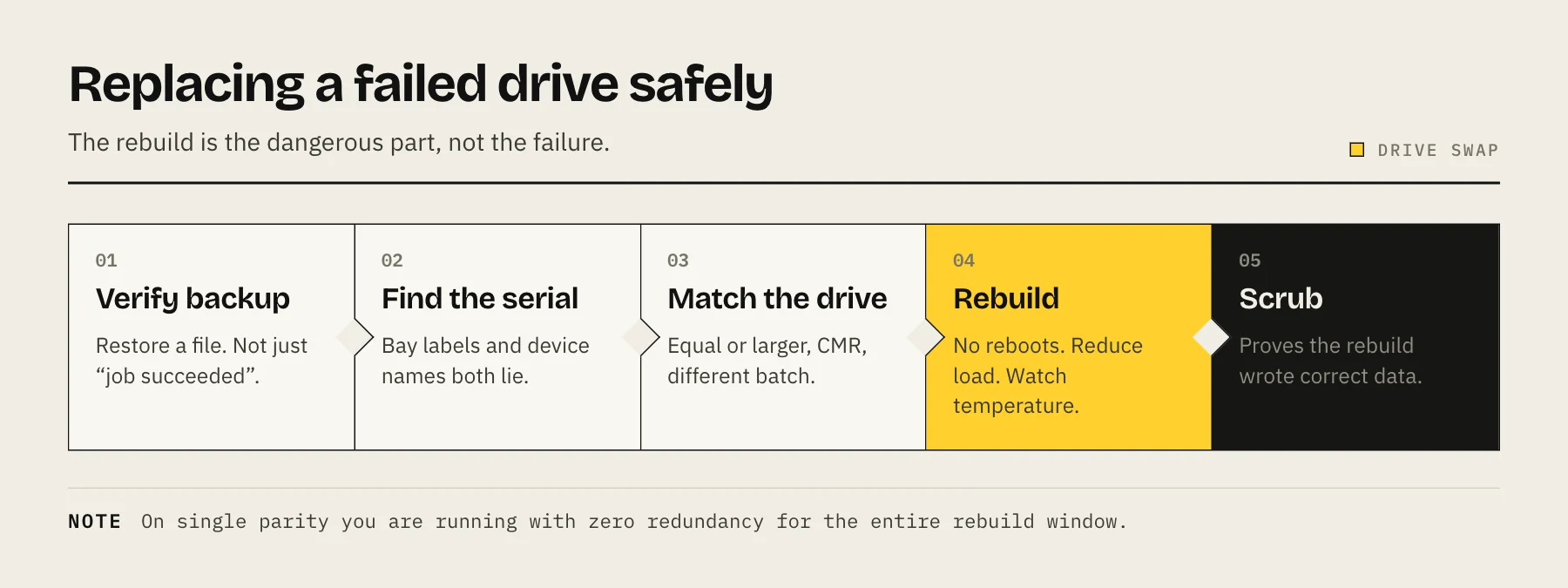
Before you touch anything
Confirm the backup is current and restorable. Not "the backup job says success" — actually restore a file from it. This is the single most important step, and it is the one people skip because the array is still serving data. Redundancy is what lets you keep working; the backup is what saves you if the rebuild fails.
Check the health of the other drives. If a second disk is showing pending sectors or reallocated sectors, you are about to stress it hard. Our guide to SMART attributes that predict failure covers what to look for. If two drives look bad in a single-parity array, copy data off before rebuilding, not after.
Note the array's redundancy level. In RAID 5, SHR with one-disk redundancy, or RAIDZ1, one failure means zero remaining tolerance. In RAID 6, SHR-2 or RAIDZ2 you still have a spare parity disk during the rebuild. This determines how nervous you should be — see RAID 5 vs RAID 6 vs SHR.
Step 1 — Identify the drive by serial number
Bay numbering in software does not always match the silkscreen on the chassis, and Linux device names (/dev/sdb) can shift between boots. The serial number is the only identifier that cannot lie.
- Synology: Storage Manager → HDD/SSD lists each drive with its serial. DSM can also blink the drive LED for physical identification.
- QNAP: Storage & Snapshots → Disks shows serial per slot.
- TrueNAS:
zpool statusgives the device, thensmartctl -i /dev/sdXgives the serial.sas2ircu/sas3ircuorledctlcan light the bay on supported backplanes. - Unraid: the Main tab lists serials per slot.
Write the serial on a sticky note. Pull the drive, read the label, confirm it matches before the tray is fully out.
Step 2 — Choose the replacement
Capacity: equal to or larger than the failed drive. Never smaller, even by a few gigabytes. On Unraid it also must not be larger than your smallest parity drive, unless you follow Unraid's parity-swap procedure. Note that a larger drive will contribute only the size of the smallest member in classic RAID 5/6 — the extra capacity sits unused until every member is upgraded. Synology SHR is the exception; it can use mismatched capacities more gracefully.
Class: use a NAS-rated drive with CMR recording. A drive-managed SMR disk can slow a rebuild from hours to days and in some cases fails the rebuild outright. CMR vs SMR explained covers why, and our best NAS hard drives guide lists suitable models.
Batch: if you can, avoid a drive from the same manufacturing batch as the rest of the array. Drives bought together tend to fail together.
Step 3 — Consider a burn-in first
A new drive that is dead on arrival will fail during the rebuild, which is the worst possible moment. If your array still has redundancy — RAID 6, SHR-2, RAIDZ2 — and you have a spare SATA port or USB dock, run a short burn-in on the replacement before inserting it: a long SMART self-test plus a full-surface write pass.
If the array is running with zero redundancy, skip this. Getting redundancy back matters more than validating the disk.
Step 4 — Hot-swap and start the rebuild
Most NAS units support hot-swap; if yours does not, or you are unsure, power down first. Nothing is lost by shutting down.
Insert the replacement, then trigger the repair from the platform rather than expecting it to happen automatically:
- Synology: Storage Manager → Storage Pool → Repair.
- QNAP: Storage & Snapshots → the degraded pool → Manage → Rebuild.
- TrueNAS / ZFS:
zpool replace poolname old-device new-device, then watchzpool status. - Unraid: assign the new disk to the slot and start the array to begin the parity rebuild.
Step 5 — Get through the rebuild
Expect hours to days. A large array can easily take over a day. Some rough guidance:
Do not interrupt it. No reboots, no firmware updates, no shutting down "just for a minute". An interrupted rebuild usually restarts from the beginning, and on some platforms it can leave the pool in a worse state.
Reduce the load. Pause scheduled backup jobs, media library scans and heavy container workloads. They compete for exactly the I/O the rebuild needs.
Watch the temperature. Every drive is reading flat-out for many hours. If your NAS lives in a cupboard, open the door and put a fan on it for the duration. This is a real failure mode, not a precaution.
Keep the UPS connected. A power cut mid-rebuild is precisely the scenario you do not want. If you do not have one, our UPS sizing guide covers it.
Step 6 — Verify afterwards
When the rebuild reports complete:
- Confirm the pool shows healthy, not "healthy with warnings".
- Run a scrub (ZFS/Btrfs) or a data consistency check. This verifies every block against its checksum and is the only way to know the rebuild actually reconstructed correct data.
- Re-check SMART on all members, including the new one.
- Resume the backup schedule and confirm the next job succeeds.
Only after the scrub passes should you consider the incident closed.
FAQ
Can I keep using the NAS during a rebuild? Yes, but everything will be slow and the rebuild will take longer. For light file access it is fine; for anything heavy, wait.
The rebuild failed partway through. Now what? Stop. Do not start another rebuild or reformat anything. Restore from backup onto a healthy array. If there is no backup, power down and consult a professional recovery service before writing anything further.
Should I replace all the drives if one failed? Not automatically. Replace the failed one, then plan gradual upgrades if the array is old. Replacing several at once means several rebuilds in a row, each with its own risk.
Do I need to shut down to swap a drive? Not on a hot-swap-capable NAS with proper trays. If in any doubt, power down — it costs you ten minutes and removes a whole class of mistake.
Sources
- Repair a Storage Pool (DSM 7) — Synology Knowledge Center
- Replacing disks (TrueNAS) — TrueNAS Documentation
- zpool-replace.8 — OpenZFS Documentation
- zpool-scrub.8 — OpenZFS Documentation
- Replacing disks in array — Unraid Docs