Jellyfin is a free, open-source media server — a no-paywall alternative to Plex for your films, TV and music. This guide installs it with Docker and turns on the feature that decides whether it is pleasant or painful to use: hardware transcoding.
🎬 Choosing hardware first? See Best NAS for Jellyfin — the short version is: get an Intel CPU with Quick Sync.
What you'll need
- A machine running Docker — ideally with an Intel CPU that has Quick Sync.
- Your media organised into Movies and TV folders.
- Your user's PUID and PGID (run
id your-usernameover SSH). - About fifteen minutes.
Understand direct play before you start
This is what separates a smooth Jellyfin setup from a frustrating one, and it is worth understanding before you install anything.
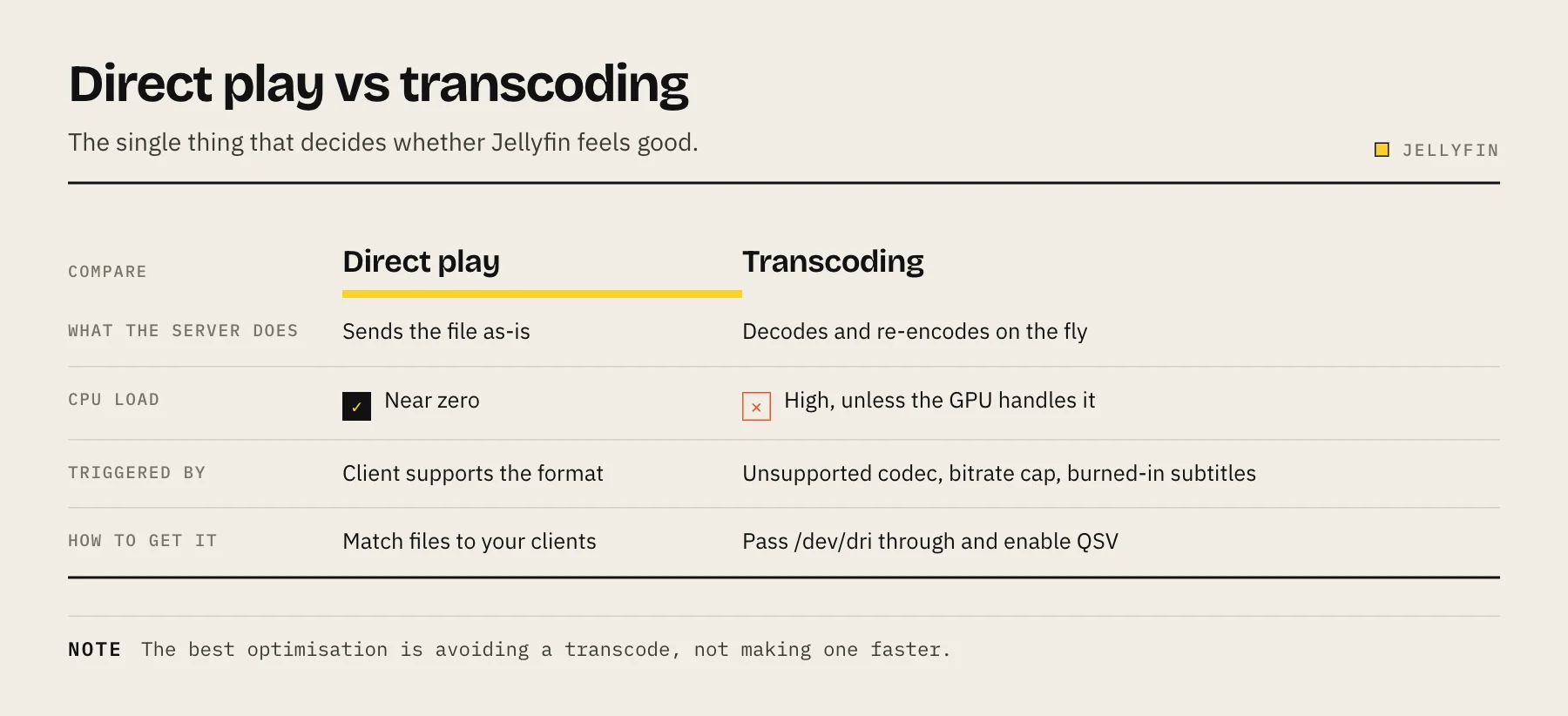
Direct play — the client supports the file's container, video codec, audio codec and subtitles, so the server just sends the file. CPU load is close to zero. A Raspberry Pi could serve it.
Transcoding — something is unsupported, so the server decodes and re-encodes on the fly. This is expensive. Done in software it will melt a NAS CPU and stutter; done on an integrated GPU it is nearly free.
Common transcode triggers: an unsupported codec on the client, a bandwidth limit that forces a lower bitrate, or burned-in subtitles (image-based subtitle formats like PGS almost always force a transcode).
The best optimisation is avoiding transcoding, not making it faster.
Step 1 — Create the compose file
services:
  jellyfin:
    image: jellyfin/jellyfin:latest
    container_name: jellyfin
    restart: unless-stopped
    user: "1026:100"          # your PUID:PGID
    ports:
      - "8096:8096"
    volumes:
      - ./config:/config
      - ./cache:/cache
      - /path/to/media:/media:ro
    devices:
      - /dev/dri:/dev/dri     # Intel Quick Sync passthrough
    group_add:
      - "105"               # host render group ID: getent group render | cut -d: -f3
    environment:
      - TZ=Europe/London
Replace /path/to/media with your library path and set the user IDs to match your NAS account. Mounting media read-only (:ro) is deliberate — the media server has no reason to be able to delete your library.
The devices line is what makes hardware transcoding possible. Without /dev/dri passed through, the container cannot see the GPU no matter what you select in the UI. Because the container runs as a non-root user, it also needs the host's render group in group_add (find the ID with getent group render | cut -d: -f3; 105 above is only an example).
Step 2 — Start it
docker compose up -d
Open http://your-server-ip:8096 and complete the wizard: create a user, then add your Movies and TV libraries.
Step 3 — Enable hardware transcoding
In Dashboard → Playback → Transcoding:
- Set hardware acceleration to Intel QuickSync (QSV).
- Enable the codecs your CPU supports — H.264 and HEVC at minimum. Check your specific CPU generation before enabling AV1 decoding.
- Enable hardware decoding as well as encoding, and tone mapping if you have HDR content.
- Save.
Then verify it. Play a file that needs transcoding, open the Dashboard, and look at the active stream. It should say hardware. If it says software, the passthrough is not working — this is the single most common failure and it is silent until you look.
On Synology, confirm /dev/dri exists on the host first:
ls -l /dev/dri
If it is absent, your model's CPU may not expose Quick Sync, and hardware transcoding is not available.
Step 4 — Set remote bitrate limits
Under Dashboard → Users → your user → Remote Connections, cap the maximum remote streaming bitrate to something your home upload speed can sustain.
Without this, a remote client will request the full-quality stream, fail to keep up, and buffer — while the server transcodes hard trying to serve it. A cap turns that into a slightly softer picture that plays smoothly.
Step 5 — Install client apps
Jellyfin has apps for Android and Android TV, iOS, Fire TV, Roku, LG and Samsung TVs, Kodi and any web browser. Client support varies by platform, and this is where direct play succeeds or fails — a client that cannot handle your files forces transcoding regardless of your server.
Test your actual TV before rebuilding your library around a codec.
Optimising your library for direct play
If you keep hitting transcodes, the fix is usually in the files:
- H.264 in an MP4 container direct-plays on nearly everything. It is larger than HEVC but far more compatible.
- Keep an AAC stereo audio track alongside surround tracks. Audio-only transcodes are often triggered by a client that cannot handle multi-channel formats.
- Prefer text subtitles (SRT) over image-based ones. PGS and VOBSUB usually force a full video transcode to burn them in.
- Consider a second, lower-bitrate copy of frequently watched titles for remote viewing.
Remote access
Do not port-forward 8096. Use Tailscale for your own devices, or a reverse proxy with HTTPS if you need browser access on devices that cannot run a VPN client. Our guide to accessing Jellyfin remotely covers both, including why Cloudflare Tunnel is a poor fit for video.
Troubleshooting
Buffering with high CPU — you are software transcoding. Recheck Step 3 and that /dev/dri is passed through.
Files will not play at all — usually a codec the client cannot handle combined with transcoding not working. Check the playback info overlay for what the server decided to do.
Permission denied on the media folder — PUID/PGID mismatch. See Docker PUID and PGID explained.
Library scan finds nothing — check the path inside the container (/media) matches what you set in the library configuration, not the host path.
Playback works locally, fails remotely — bandwidth. Set the remote bitrate limit.
FAQ
Jellyfin vs Plex? Jellyfin is free and open source with hardware transcoding included; Plex has a more polished client ecosystem and a subscription for some features. See Jellyfin vs Plex.
Do I need a powerful NAS? For direct play, no. For 4K transcoding, you need Quick Sync or an equivalent GPU.
Does it work on AMD or NVIDIA? Yes — VAAPI on AMD, NVENC on NVIDIA, with different passthrough configuration. Intel Quick Sync is simply the most common low-power option.
Can I watch away from home? Yes, with a VPN or a reverse proxy — see above.
Sources
- Container — Jellyfin Documentation
- Intel GPU hardware acceleration — Jellyfin Documentation
- Hardware Acceleration — Jellyfin Documentation
- Jellyfin clients — Jellyfin