A reverse proxy is a single front door for all your self-hosted services. Instead of remembering
192.168.1.50:8096and192.168.1.50:8080, you getjellyfin.yourdomain.comandfiles.yourdomain.com— each with a real HTTPS certificate, all arriving on ports 443 and 80, with only the proxy exposed.
If you run more than two or three self-hosted applications, you will eventually want one. Not because ports are hard to remember, but because a proxy is the place where TLS, authentication and access rules can live once instead of being configured badly in every application.
What it actually does
A forward proxy sits in front of clients and makes requests on their behalf. A reverse proxy sits in front of servers and receives requests on their behalf. Same word, opposite direction.
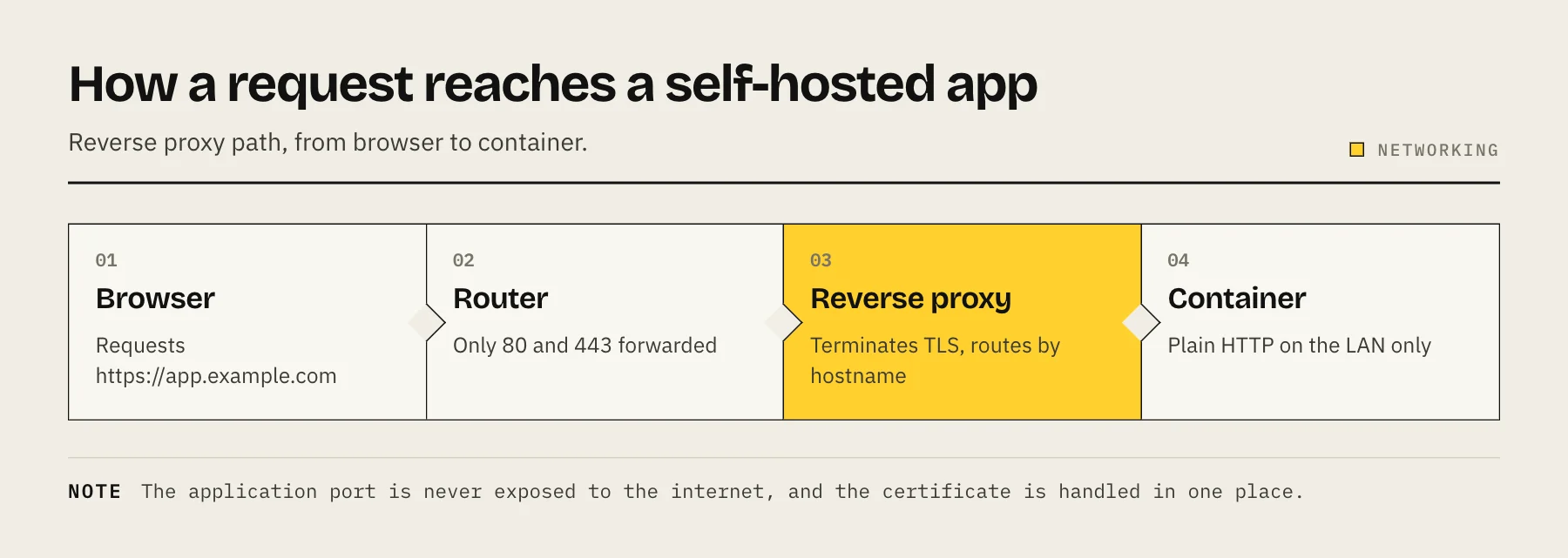
Concretely, the reverse proxy:
- Listens on ports 80 and 443 — the only ports that need to reach it.
- Reads the hostname the browser asked for.
- Forwards the request to the right internal service and port over the LAN.
- Returns the response, having handled TLS on the public side.
The applications behind it keep speaking plain HTTP on the local network and never need to know about certificates at all.
Why you want one
One certificate story. The proxy obtains and renews Let's Encrypt certificates automatically for every hostname. Without it, each application needs its own certificate configuration, and most self-hosted apps handle TLS badly or not at all.
One place for authentication. Add an authentication layer at the proxy and every service behind it inherits it — including the ones with weak or no built-in login.
Real hostnames. photos.yourdomain.com instead of a port number, which matters a great deal when other people in the household have to use it.
Fewer exposed ports. Two, rather than one per application.
A single place for security headers, rate limits and access rules.
The common choices
Caddy — the simplest to start with. Automatic HTTPS is the default behaviour, and a working config is a few lines:
jellyfin.example.com {
    reverse_proxy 192.168.1.50:8096
}
Nginx Proxy Manager — a web UI over Nginx. If you would rather click than edit files, this is the friendliest option and it handles certificates for you.
Traefik — designed for containers. It discovers services from Docker labels and reconfigures itself as containers come and go. Excellent once you are running many containers; more concepts to learn first.
All three are fine. Pick Caddy if you want it working in ten minutes.
What you need before starting
- A domain name. Even for LAN-only use, a real domain lets you get valid certificates.
- DNS pointing at your network — an A record to your home IP, or a dynamic DNS hostname if your IP changes.
- Ports 80 and 443 forwarded to the proxy, and nothing else forwarded.
- A static or reserved IP for the proxy host.
The LAN-only option people miss
You do not have to expose anything to use a proxy.
Using DNS-01 certificate validation, the proxy proves domain ownership through a DNS record instead of an inbound HTTP request. That means you can have valid, trusted HTTPS certificates for nas.yourdomain.com while the hostname resolves only to a private address and nothing is reachable from the internet.
Combine that with a mesh VPN and you get clean hostnames and real certificates with zero public exposure — which is the right answer for most home setups. See Cloudflare Tunnel vs Tailscale vs reverse proxy.
Configuration details that cause most of the problems
Set the application's own base URL. Many self-hosted apps generate absolute links and redirects. If the app does not know it is being served as https://photos.example.com, it will redirect people to its internal address. Look for a "published URL", "base URL" or "trusted domains" setting.
Tell the app about the proxy. Applications need to trust the proxy's IP before they will believe X-Forwarded-For headers, otherwise every request appears to come from the proxy and rate limiting and logging are useless.
WebSockets. Live updates, terminals and progress bars need WebSocket upgrade headers passed through. Caddy and Traefik handle this by default; Nginx configurations often need it added explicitly.
Upload size limits. Default body size limits will silently break large file uploads to Nextcloud or Immich. Raise the limit at the proxy as well as in the app.
Timeouts. Long-running requests — large uploads, media transcoding — can hit default proxy timeouts.
Security, if it is publicly reachable
A reverse proxy gives you TLS. It does not make an outdated application safe.
- Keep the proxy and every service behind it patched.
- Never put the NAS admin panel behind it. Individual applications, yes. The control panel, no — see accessing your NAS remotely.
- Add an authentication layer in front of anything that does not have strong authentication of its own.
- Rate-limit login endpoints, and consider fail2ban or equivalent.
- Expose only what needs exposing. Every additional hostname is another thing to maintain.
FAQ
Do I need a domain name? For trusted certificates, effectively yes. Domains are inexpensive, and self-signed certificates mean browser warnings forever.
Can I run the proxy on the NAS itself? Yes, as a container. A separate small machine is slightly cleaner — a NAS reboot then does not take your front door with it — but on one box is perfectly workable.
Does a reverse proxy slow things down? Negligibly for normal use. TLS termination costs very little on modern hardware.
What if my IP address changes? Use a dynamic DNS provider; most routers and NAS units can update one automatically.
Is this the same as a VPN? No, and they solve different problems. A proxy makes services publicly available with TLS. A VPN makes your devices privately reachable with nothing public. Many setups use both.
Sources
- Automatic HTTPS — Caddy
- reverse_proxy (Caddyfile directive) — Caddy
- Challenge Types (DNS-01) — Let's Encrypt
- WebSocket proxying — nginx
- Docker provider — Traefik Labs
- Nginx Proxy Manager — Nginx Proxy Manager project