Run Pi-hole in a container, then point your router's DHCP at it so every device uses it automatically. Set a second DNS server carefully — or not at all — because a badly configured fallback silently bypasses all your filtering. And plan what happens when the NAS reboots, because when Pi-hole is down, your whole household's internet appears to be down.
Pi-hole is a DNS server that refuses to resolve domains on blocklists. Because ad and tracker requests never resolve, they never load — on every device, including the ones with no ad blocker available.
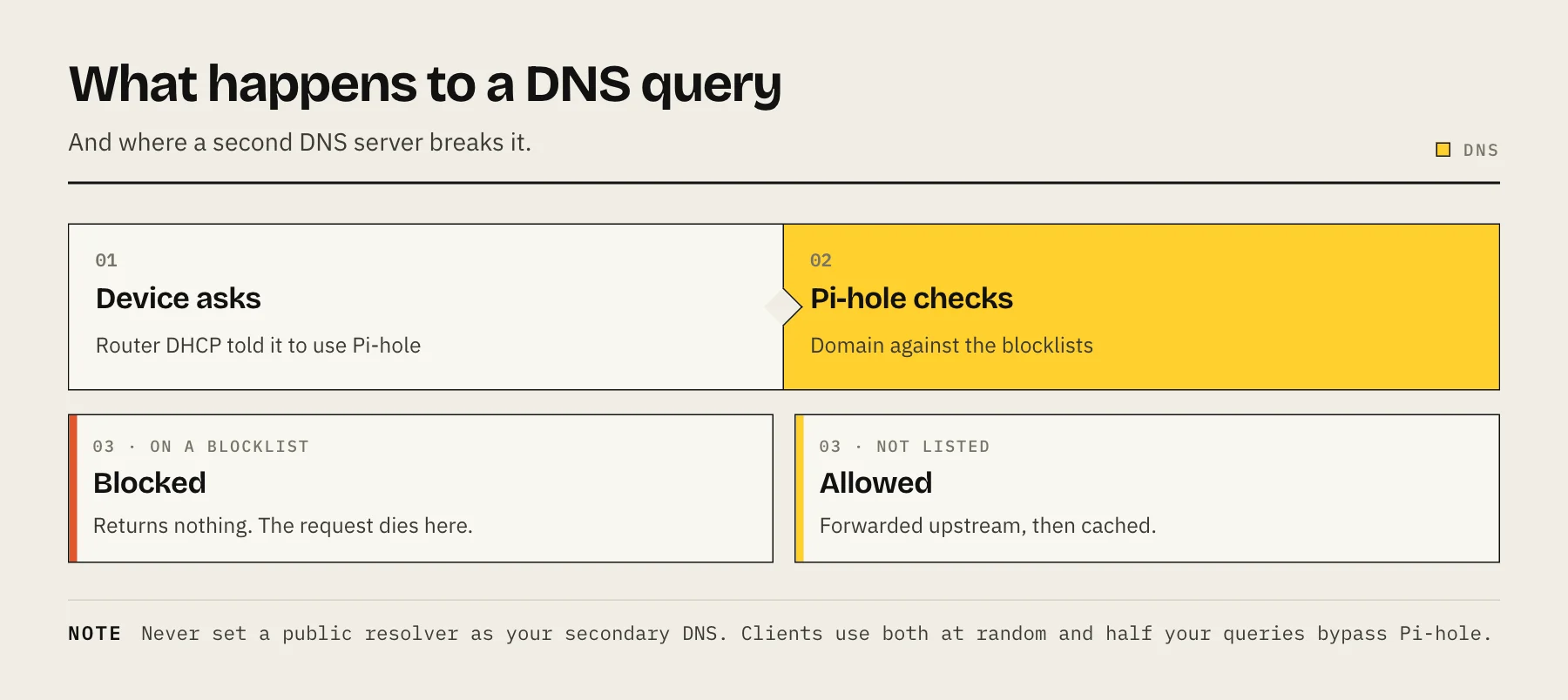
How it actually works
- A device asks for
example-tracker.com. - Pi-hole checks the domain against its blocklists.
- If blocked, it returns nothing useful and the request dies immediately.
- If allowed, it forwards the query upstream and caches the answer.
Two consequences worth understanding up front:
It blocks at the domain level, not the element level. It cannot remove an ad served from the same domain as the content — YouTube's in-video ads are the classic example. Use it alongside a browser blocker, not instead of one.
It sees every DNS query on your network. That is a privacy feature (the queries stay home) and a responsibility (the query log is a record of what everyone is doing). Consider your household's expectations, and set a log retention period deliberately.
Step 1 — Run the container
services:
  pihole:
    image: pihole/pihole:latest
    container_name: pihole
    restart: unless-stopped
    ports:
      - "53:53/tcp"
      - "53:53/udp"
      - "8053:80/tcp"
    environment:
      - TZ=Europe/London
      - FTLCONF_webserver_api_password=change-this
      - FTLCONF_dns_listeningMode=ALL
    volumes:
      - ./etc-pihole:/etc/pihole
      - ./etc-dnsmasq.d:/etc/dnsmasq.d
    cap_add:
      - NET_ADMIN
Two things commonly go wrong here:
Port 53 is already in use. Many NAS platforms run their own DNS resolver. On Synology, check whether the DNS Server package is installed. On Linux hosts, systemd-resolved frequently holds port 53. Free it before starting the container.
Web port conflicts. Map the admin UI to a free host port — 8053 above — rather than 80.
Note that Pi-hole v6 changed how configuration is supplied; environment variable names differ from v5 guides. Check the documentation for the version you are pulling.
Step 2 — Give it a fixed address
Pi-hole must be at a stable IP address forever, because it will be baked into your router's DHCP configuration. Set a DHCP reservation on the router for the NAS.
Step 3 — Point your network at it
The right way is your router's DHCP settings: set the DNS server handed out to clients to your Pi-hole's IP. Every device picks it up automatically on its next lease renewal.
Here is the part that trips people up. Many router firmwares expect two DNS servers, and people fill the second field with 8.8.8.8 "just in case".
Do not do this. Clients do not treat the second entry as a failover — they use both, often at random. Roughly half your queries then bypass Pi-hole entirely, and the results look like Pi-hole is "sometimes not working".
Either leave the secondary blank, or point it at a second Pi-hole. Nothing else.
If your router will not let you change DNS, use Pi-hole as your DHCP server instead: disable DHCP on the router and enable it in Pi-hole. This also restores per-device hostnames in the query log, which the router-DHCP approach can lose.
Step 4 — Choose an upstream resolver
Pi-hole forwards allowed queries upstream. The options in setup include the large public resolvers; you can also point at a self-hosted recursive resolver like Unbound if you would rather not send your browsing to any third party.
If you use a public resolver, you have chosen who sees your DNS traffic. That is a legitimate trade — just make it knowingly.
Step 5 — Blocklists: less is more
Pi-hole ships with a sensible default list. The temptation is to add every list you find, and it is a mistake — aggressive lists break things in ways that are hard to diagnose weeks later, when nobody remembers adding them.
Start with the default. Add one well-maintained list at a time and use the network for a week before adding another.
When something breaks, the Query Log shows exactly which domain was blocked, and whitelisting is one click.
Step 6 — Plan for it being down
This is the operational reality people underestimate: when Pi-hole is down, the internet is down for everyone in the house. A NAS reboot, a container update, a full disk — and someone is calling you about the Wi-Fi.
Mitigations, in order of effort:
restart: unless-stopped, so it comes back after a reboot.- Know the fallback procedure and tell someone else in the household: change DNS on the router to a public resolver, and everything works again.
- Run a second Pi-hole on another always-on device and give both to DHCP. This is the proper answer if the household is impatient.
Common problems
Ads still appear. Check the client is actually using Pi-hole — the dashboard shows which devices are querying. If a device is missing, it has a hardcoded DNS setting, or your router is handing out a second resolver.
A site is broken. Query Log, find the blocked domain, whitelist it.
Devices ignore Pi-hole. Some smart TVs and streaming devices hardcode DNS servers. Blocking outbound port 53 at the router forces them back, if your router supports it.
DNS-over-HTTPS bypasses it. Browsers with DoH enabled resolve names themselves. Disable DoH in browser settings. Pi-hole cannot act as a DoH server itself, but by default it answers Firefox's use-application-dns.net canary domain with NXDOMAIN, which turns off Firefox's automatic DoH.
Devices show as one address in the log. Your router is proxying DNS. Use Pi-hole's own DHCP server instead.
FAQ
Does it slow the internet down? No — the cache usually makes DNS resolution faster.
Does it block YouTube ads? Not the in-video ones. Same domain as the content.
Will it break streaming services or smart home devices? Occasionally, with aggressive blocklists. Stick to conservative lists and whitelist as needed.
Can I run it alongside a VPN? Yes. Devices on your Tailscale network can use Pi-hole for DNS while away from home.
Pi-hole or AdGuard Home? Both work well and solve the same problem. AdGuard Home includes DoH/DoT support out of the box; Pi-hole has a larger community and more documentation. Either is a reasonable choice.
Sources
- Post-Install: making your network take advantage of Pi-hole — Pi-hole documentation
- Docker Pi-hole (official image and compose example) — Pi-hole (GitHub)
- Docker configuration (FTLCONF_ environment variables) — Pi-hole documentation
- FTL configuration reference (listeningMode, mozillaCanary) — Pi-hole documentation
- unbound as a recursive resolver — Pi-hole documentation
- AdGuard Home — AdGuard (GitHub)